


ILEVIA MANAGER MAIN MENU GUIDE
INTRODUCTION
The purpose of this guide is to explain the features of the Ilevia’s configuration software Ilevia Manager. The Main menu has six sections: File, Project, Users, Tools, Language and Mode.
File
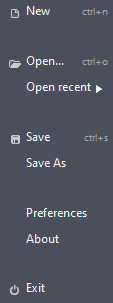
New: Once this button is clicked it will allow you to create a new project.
Open: Once this button is clicked a window will open allowing you to select an existing Ilevia Manager project within your device.
Open recent: recent Once this button is clicked it will open a side panel where you will find all the recent opened project.
Save / Save As: Once this button is clicked it will save the current project or let you choose a name if it hasn’t been saved yet.
Preferences: This button will open the configuration menu for the auto save, where you can set the time between each save and where to save the project.
About: This window shows the project ID and the User interface version.
Exit: This button allows you to close the entire software.
Project
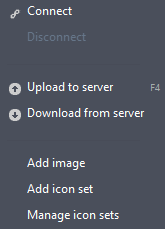
Connect: This button will open a context menu where you can insert the connection parameters in order to connect to your Ilevia server.
Disconnect This button will disconnect Ilevia Manager from the Ilevia server.
Upload to server: This button will initialize the project upload towards the Ilevia server or, if you are not connected yet, you will need to enter the parameters of the server
Download from server: This button will initialize the project download from the Ilevia server after inserting the connection parameters.
Add image: In this window you will be able to add an image as an icon set.
Add icon set: Once clicked this button will open a context menu that will guide you to add a new Icon set in Ilevia Manager. Follow this guide for further information on how to add a new icon set in Ilevia Manager.
Manage icon set: This Button will open a new context menu where you can manage all the icon set added in Ilevia Manager. Follow this guide for further information on how to manage an Icon set in Ilevia Manager.
Users
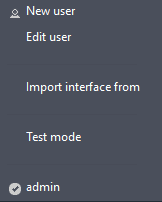
New user: This button will open the context which will allow you to create a new user. For further information about the User managment click please consult this guide.
Edit User: This button will open the edit user menu, this menu allows you to customize the selected user.
Import interface from: This option allows to import any kind of interface from a user into another. Event if it has a different interface style.
Test mode: This option will activate the test mode of the project. This will create a temporary QR code to all the project Users, this comes useful if you are testing a project that is already active in a different server.
import interface: This button allows to import the interface from a different user. The interface importation is also able to convert the Classic and Map and vice versa.
Tools
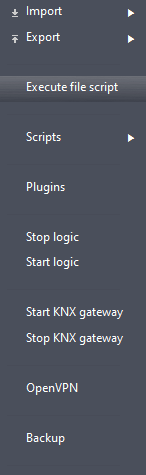
Import: Here you will find all the importation wizards.
Export: Here you will find all the exportation wizard.
Execute file script: By clicking on this button a new window will open allowing you to choose a Javascript file to execute.
Plugins By clicking this button a new context menu will appear on the middle of the screen allowing you to download and install the latest Logic version in your Ilevia server.
<p<Stop logic / Start logic: These two buttons allow the user to Stop and Start the Logic plugin module.</p<
Start / Stop KNX Gateway: These two buttons allow the user to Stop and Start the possibility to turn the Ilevia server into a KNX IP interface.
OpenVPN: This option allows you to start the setup of the Ilevia server VPN connection setup. Please follow this guide for further information.
Back Up: This procedure require Ilevia Manager to be connected to the Ilevia server. Once clicked this button will open a new context menu that allows the user to create or select a back up file of the Ilevia server. For further information about the Backup procedure please follow this guide.
Language
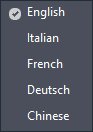
Here you will be able to select the language that Ilevia Manager will user for its software interface.
Mode

This menu allows to select and filter the available features based on which kind of License your ilevia server has between Pro and Lite. The Beta mode instead, gives you access to Beta features before their actual official release.