TAILSCALE P2P VPN WITH ILEVIA
INTRODUCTION
Tailscale provides secure, effortless remote access to your Ilevia system by creating a private, encrypted network between your devices. With WireGuard®‑based protection and zero‑configuration setup, the Ilevia X1 server becomes reachable from anywhere without port forwarding or complex network rules.
Ilevia’s configuration software natively supports Tailscale, allowing you to connect the X1 server to your Tailscale network directly and manage your system remotely in a simple and secure way.
Tailscale configuration
First download the Tailscale client from its website.
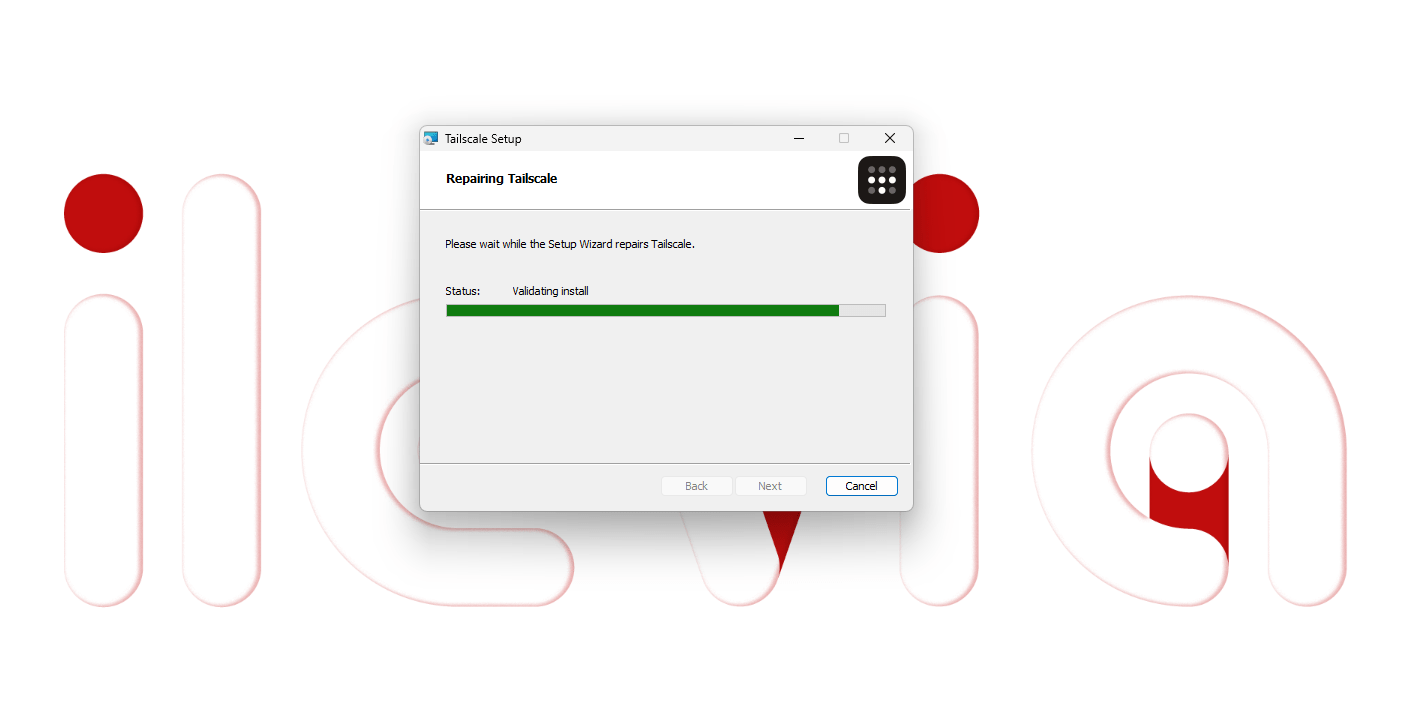
Install the Tailscale client. and then start it up.
Ilevia clients configuration
The Ilevia Head Scale module provides a secure and streamlined way to manage remote access to the X1 server through an integrated VPN connection. By linking the X1 device to the Head Scale infrastructure, installers gain a protected and encrypted communication channel that avoids the need for port‑forwarding or exposing the server directly to the internet.
Once configured, Head Scale assigns the X1 server a private identity within a secure mesh network. This ensures stable remote connectivity for programming, monitoring, and maintenance tasks, while keeping the installation fully protected and easy to manage across different projects with the same software.
VPN Key configuration within the X1 Plus
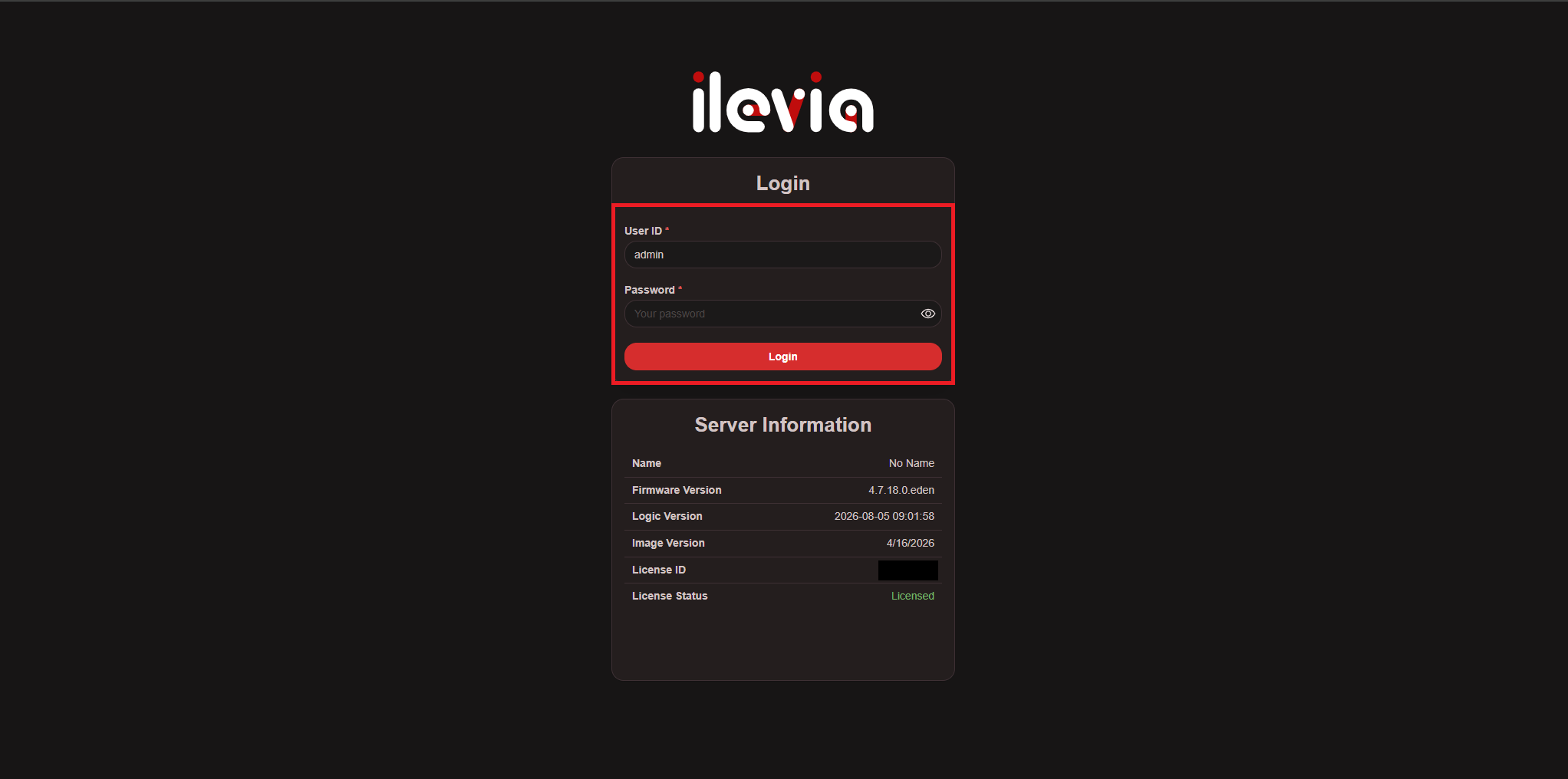
Connect to the X1 Plus server web interface, and login.
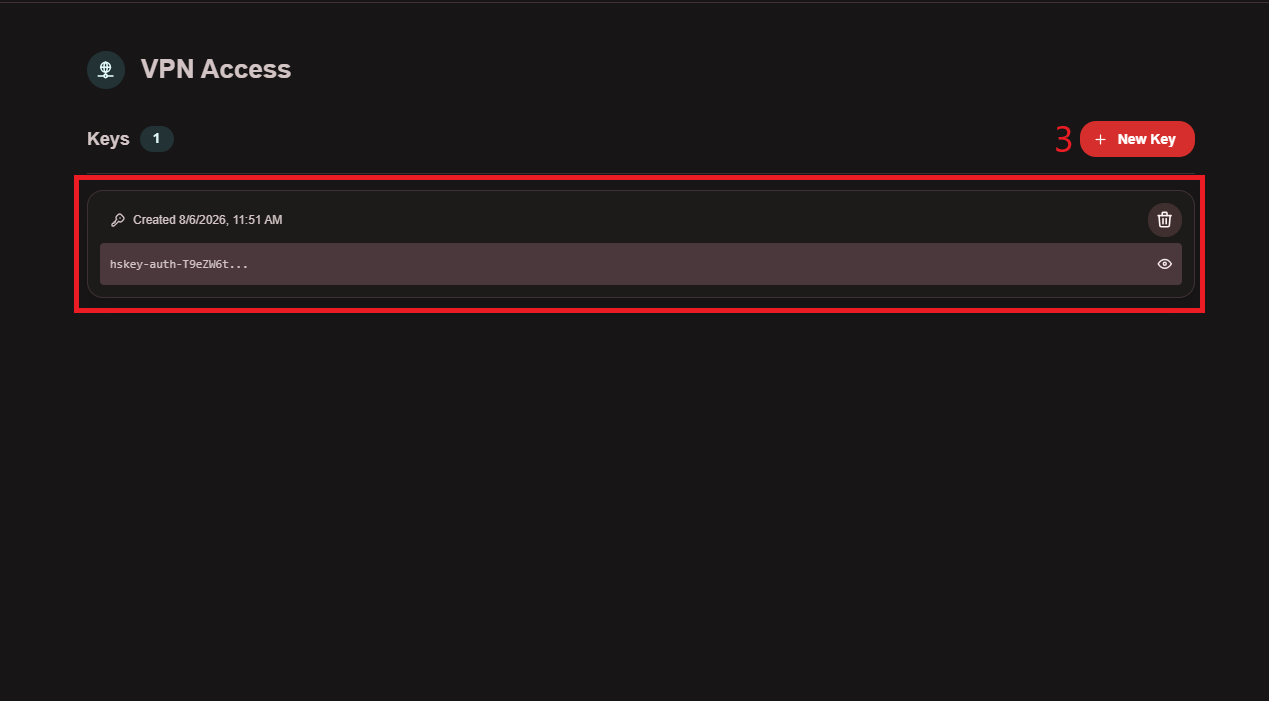
Navigate to the Network menu and select VPN Access. Then click New Key to generate a new Headscale VPN key.
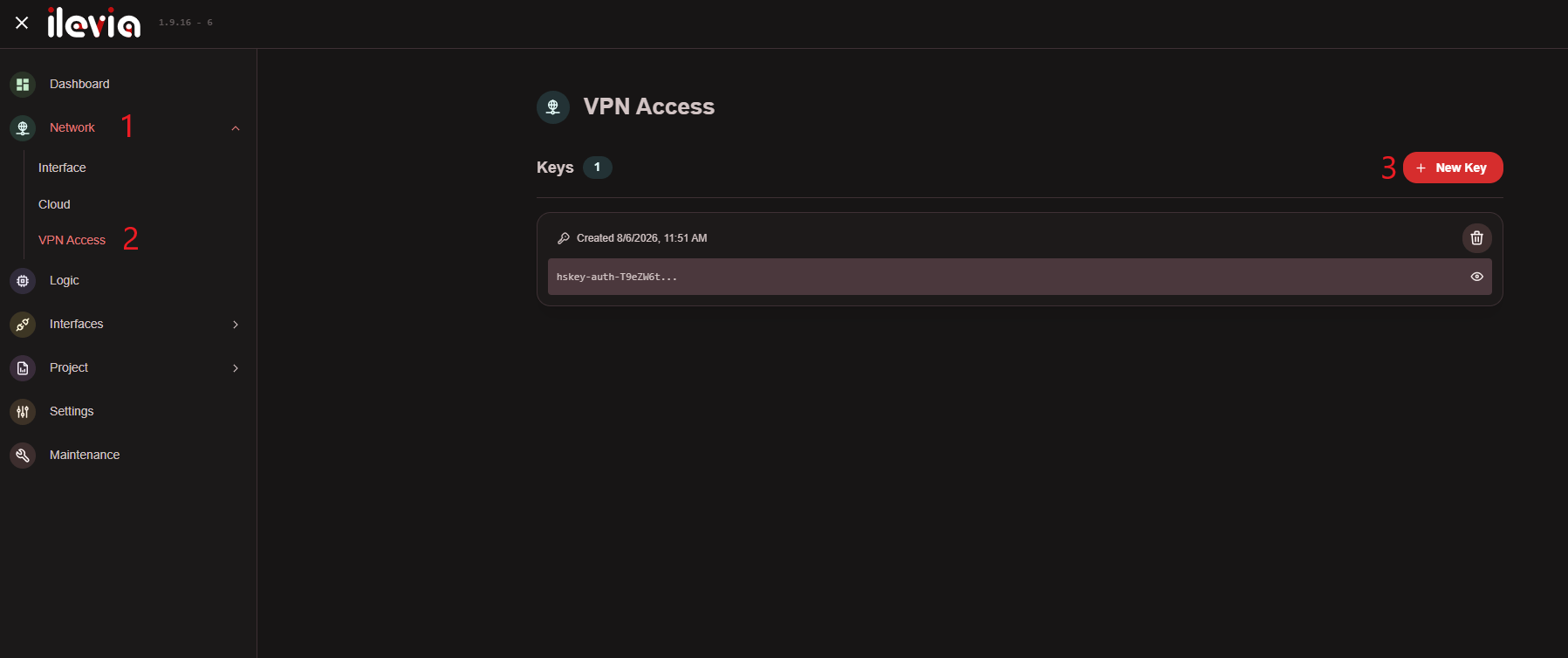
The newly created key will appear in the list below under Key.
Headscale Client configuration
Download the Ilevia VPN client. Click here to download the client. Then start it up.
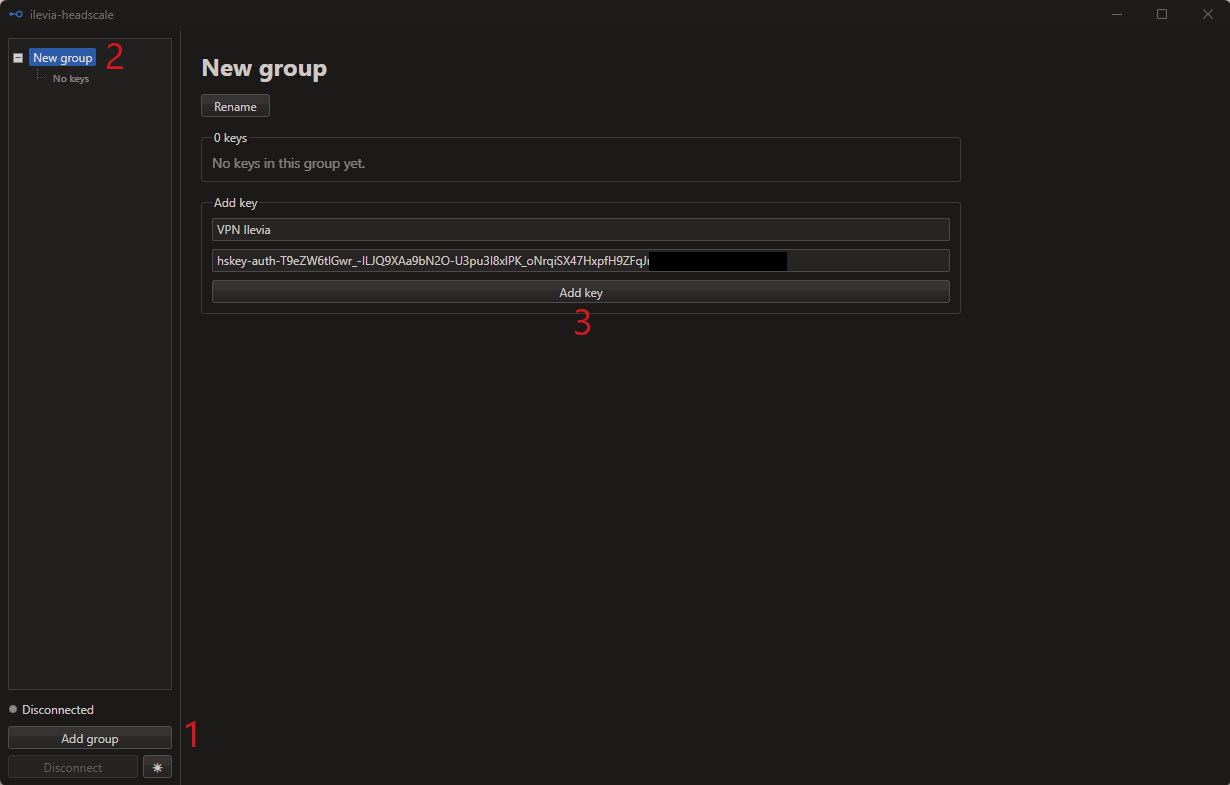
1. Click Add Group, then enter a name for the group.
2. Enter the key generated in the Ilevia X1 Plus web interface and apply a name to the Key.
3. Click Add key.
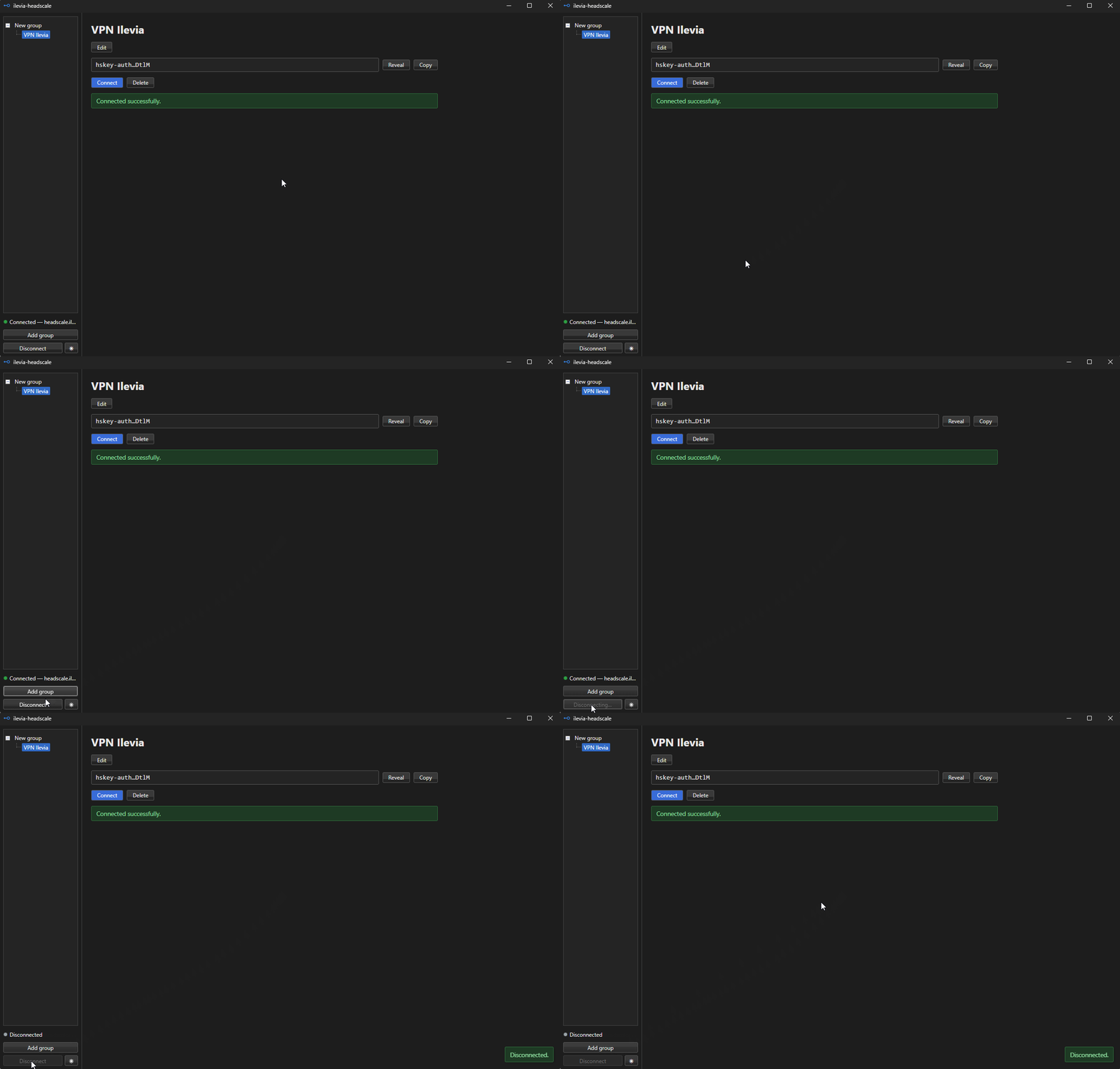
Click Connect. The client will attempt to connect to the Ilevia Headscale service. If the connection is successful, the connection status will display the message Connected.
Once connected to the VPN, you will be able to browse the server’s local network and securely access devices and services available on it, just as if you were connected directly to the local network.
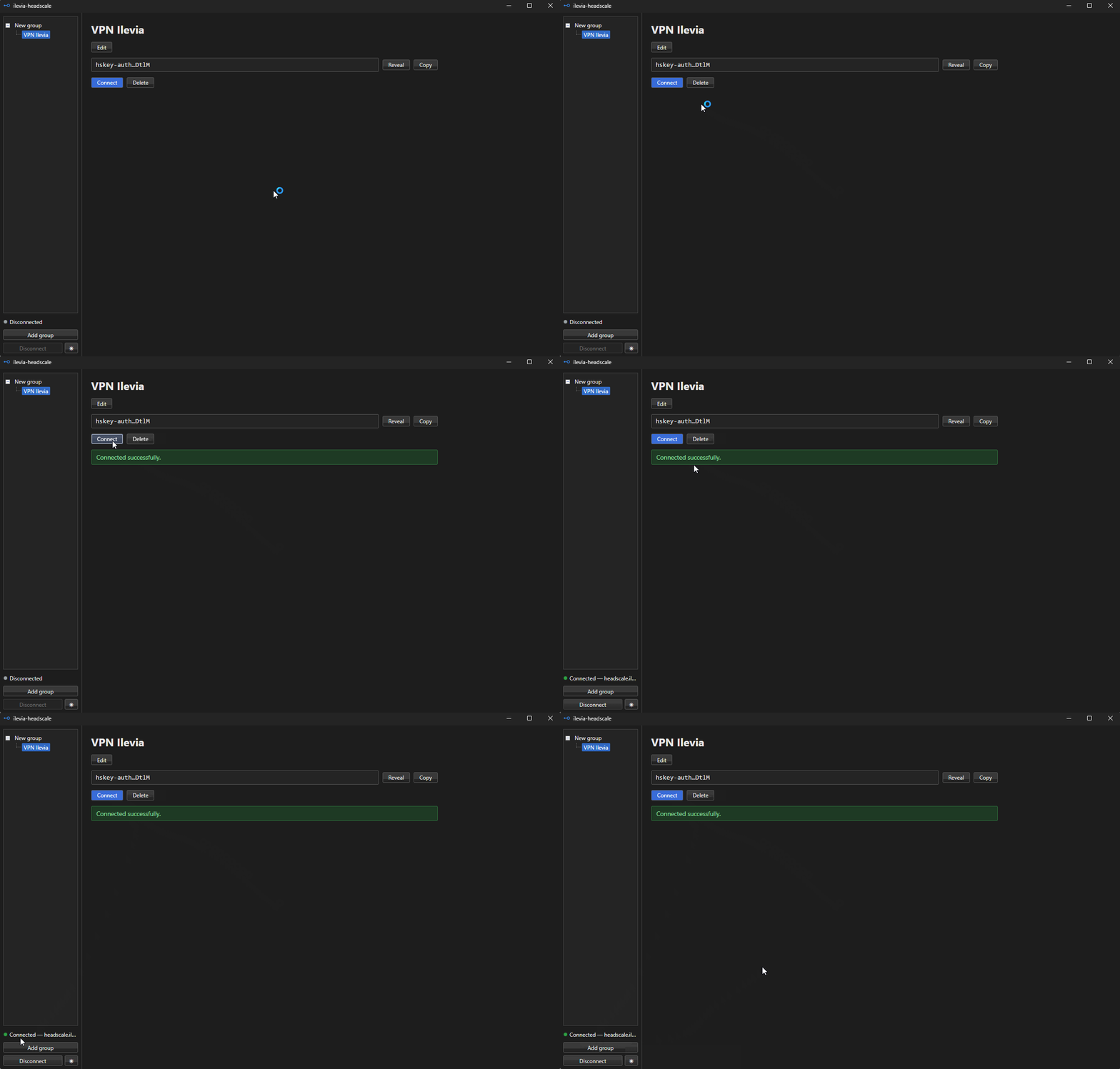
To disconnect from the VPN just click the “Disconnect” button on the bottom left of the software.