SONOS
SONOS
INTRODUCTION
With Ilevia’s server integration with SONOS, your sound system becomes a fully connected part of your smart home ecosystem. Whether you’re waking up, hosting guests, or winding down, you can now orchestrate your audio environment with just a tap.Thanks to this integration, the Ilevia Control App lets you: Control SONOS speakers directly from your smart home interface, play your favorite Spotify playlists without switching apps and Automate music playback as part of your scenes and routines. In this guide it is show how to setup the Sonos integration with the Ilevia sever.
USE CASES
-
Start your day with lights, blinds, and your favorite Spotify playlist—all triggered automatically through Ilevia and SONOS.
-
Play music, adjust volume, and switch playlists across rooms directly from the Ilevia app while hosting or relaxing.
-
Set the vibe with scenes like “Relax” or “Workout” that sync lighting and SONOS playback to match your mood.
Component configuration
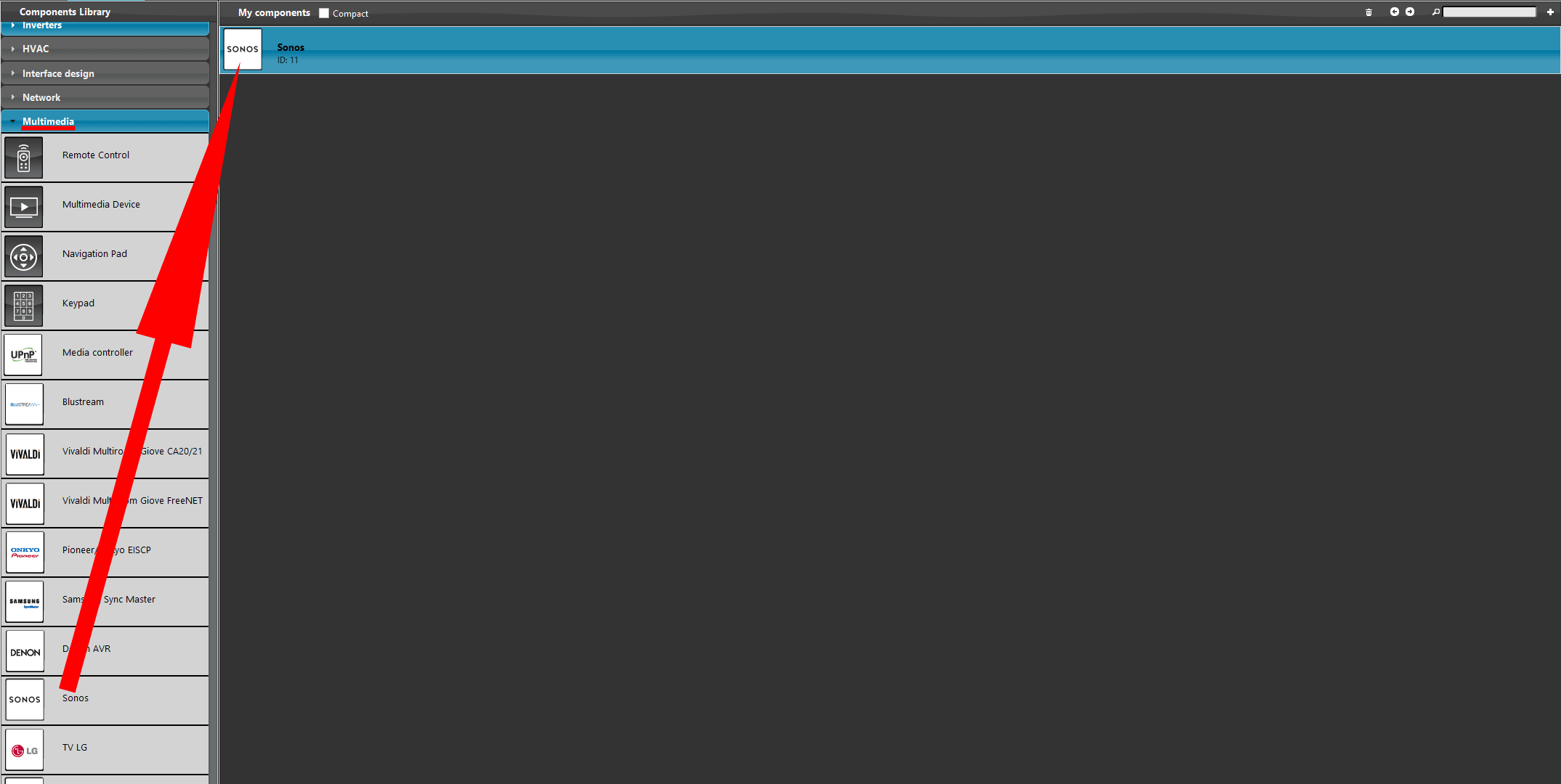
Open the Ilevia Manager software. Add a new SONOS component from the “Multimedia” tab menu from the “Components library“.
Step 2:
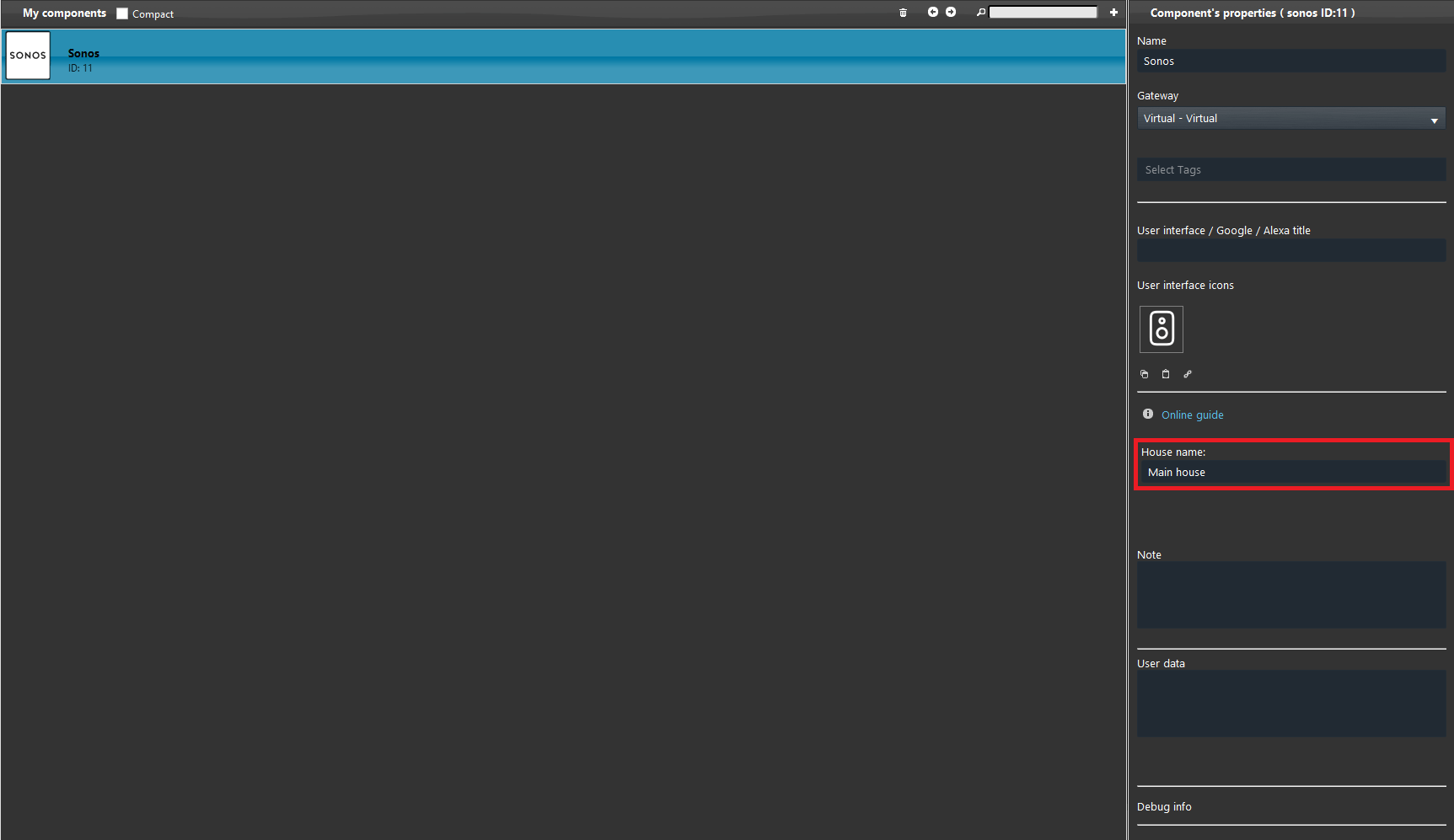
Enter a name within the Home name parameter. This allows the user to manage the Sonos House holds with the Ilevia Control app.
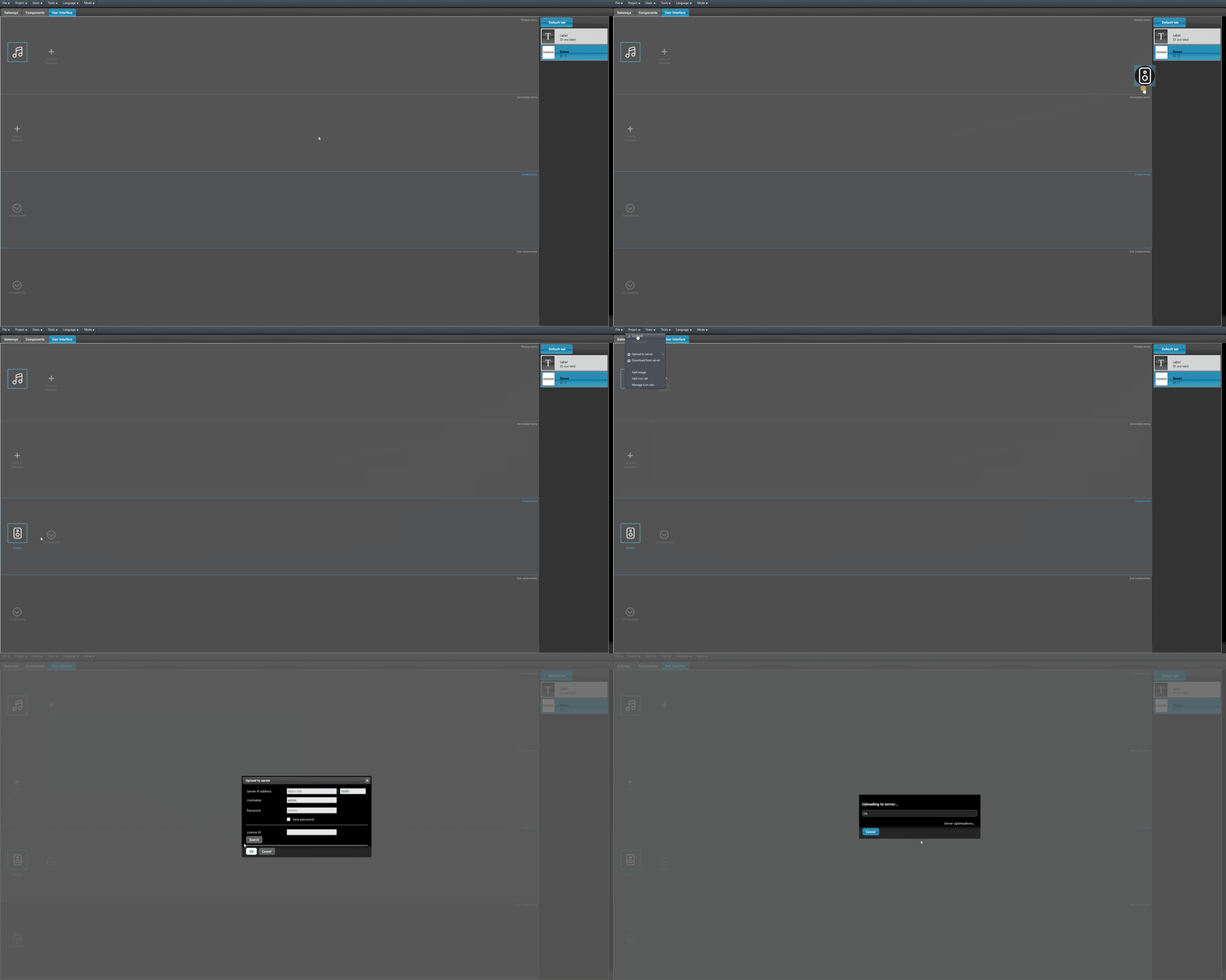
Add the SONOS component within the user interface. Access the User inteface Tab and upload the project to the server.
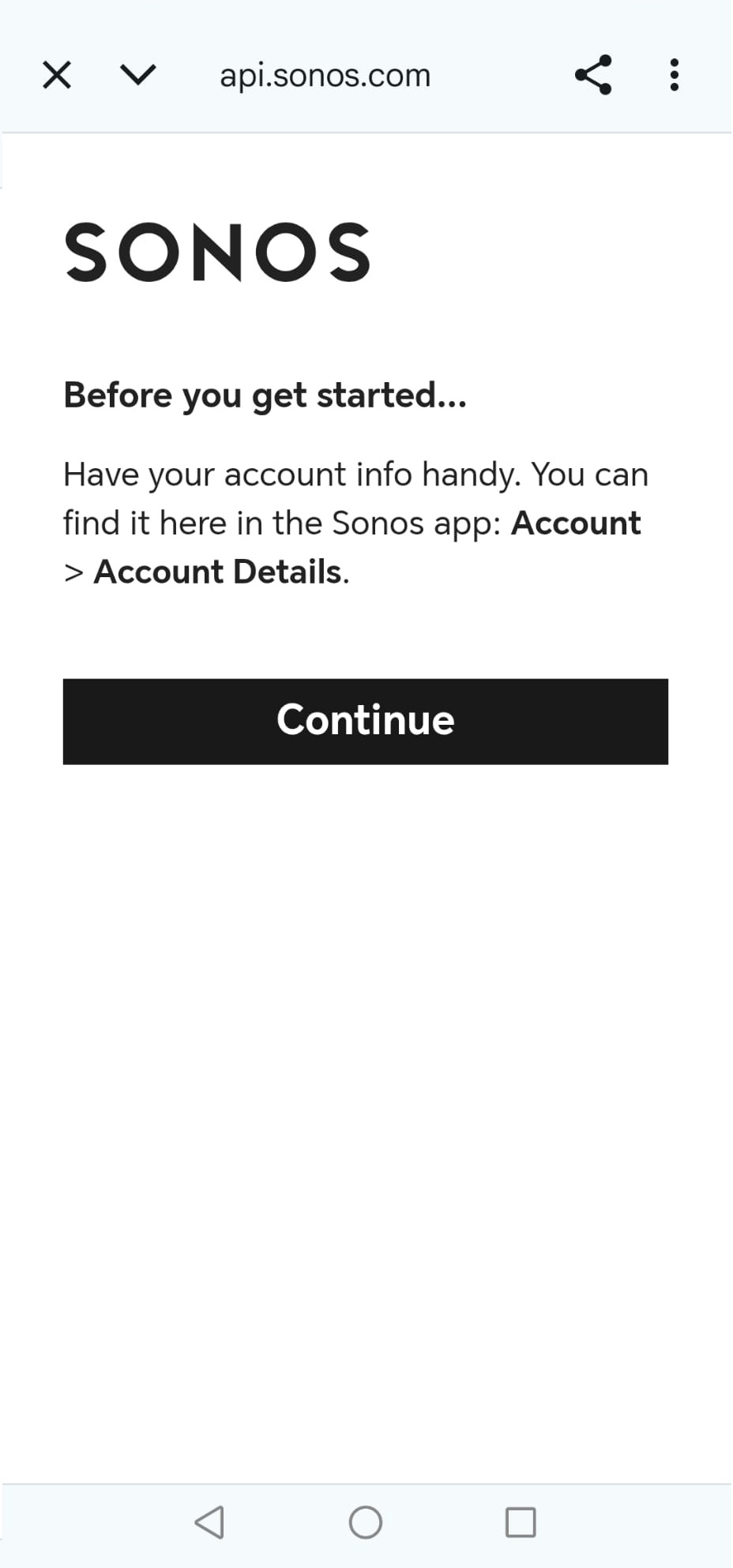
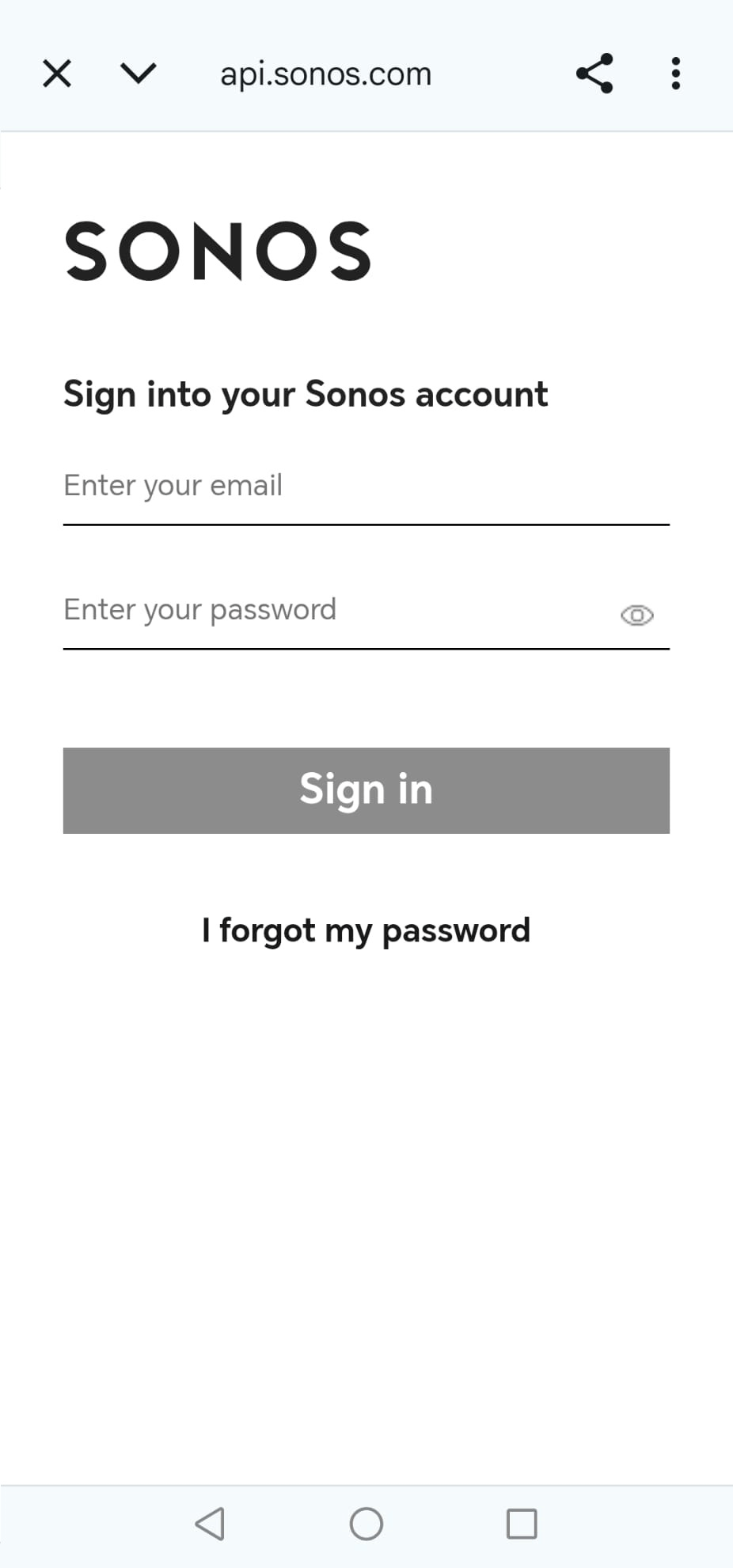
Access you Ilevia account, follow this guide to get further information about Ilevia control account setup, click the Sonos component. Finally perform the login into your Sonos account.
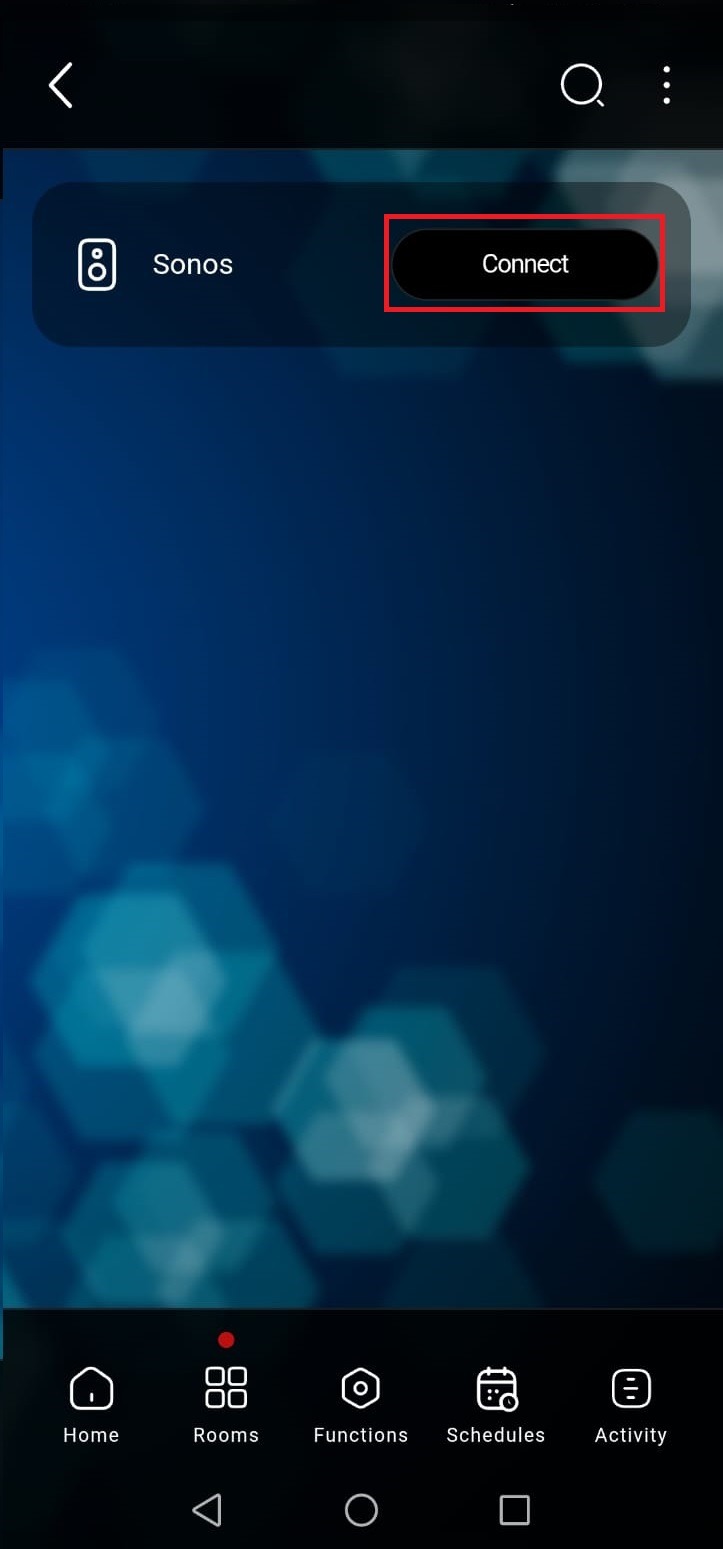
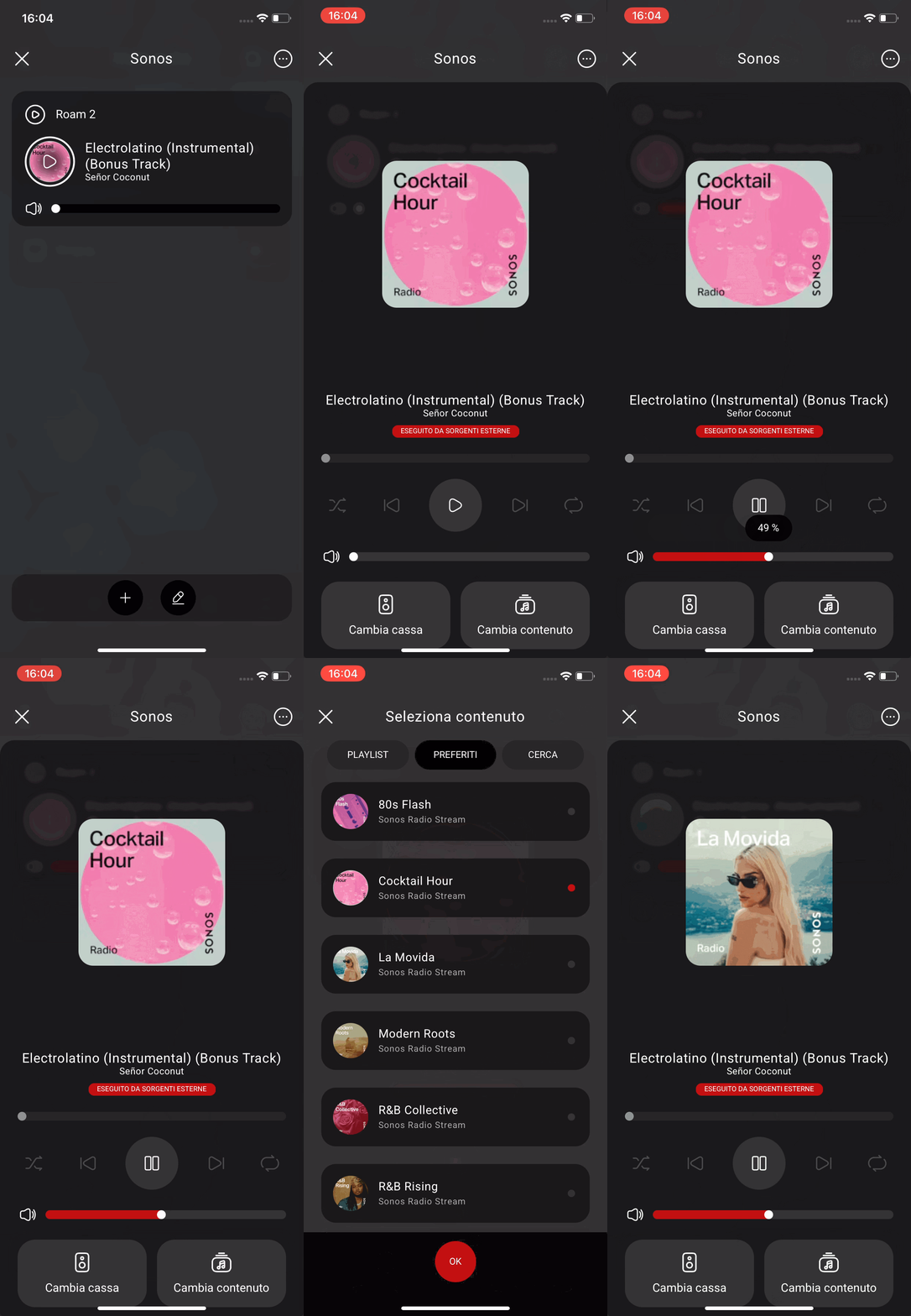
Access the SONOS account, once done, the speakers linked to the SONOS account.
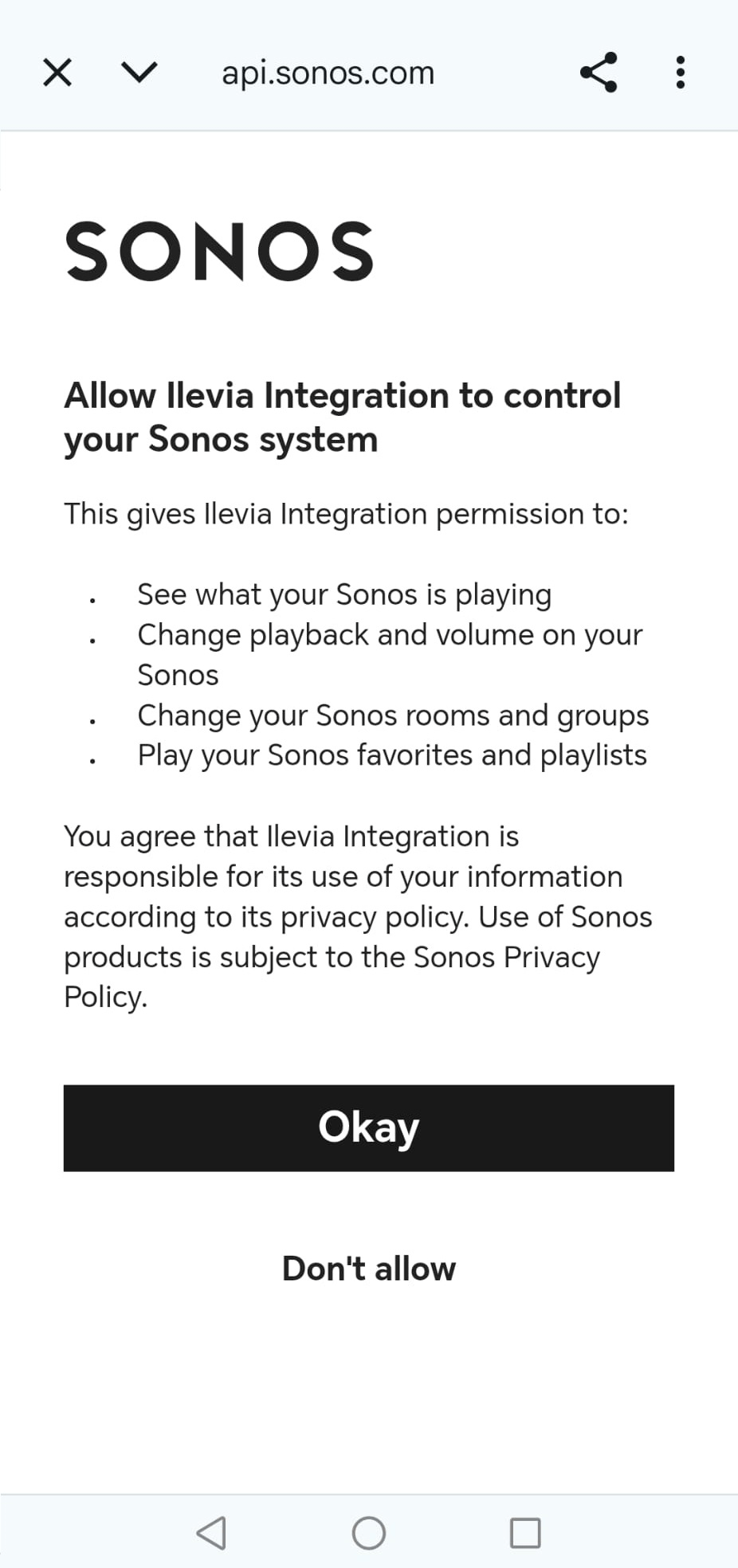
From the Ilevia control app you are allowed to play, stop, skip track, get back to previous track and select speakers.