


 Google Calendar
INTRODUCTION
The Google Calendar component allows to integrate a Google Calendar Event with the Ilevia server X1. This component allows to trigger two scenarios that can manage the behaviour of a meeting room: activate the thermostat, adjust the light dimming and Open the Shutter.
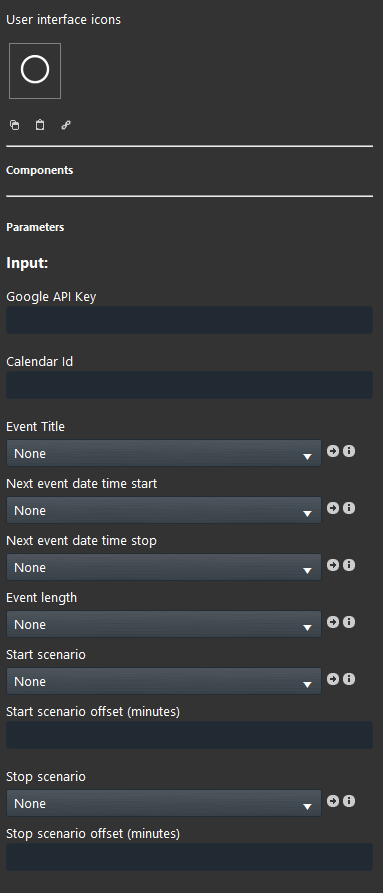
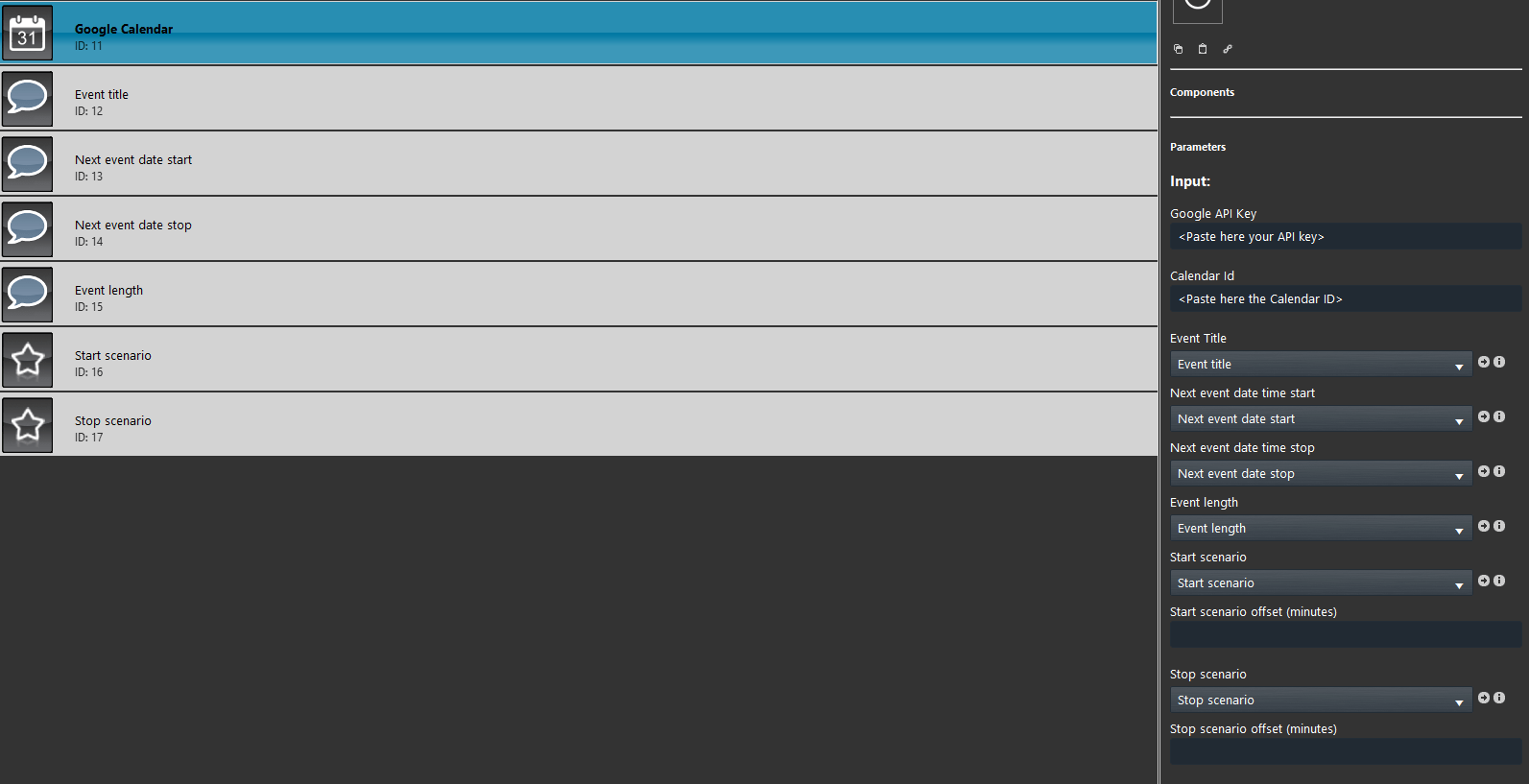
Google API Key: Enter here the Google Calendar API key.
Calendar id: Enter here the Calendar id. The Calendar ID represents the calendar on the Internet.
Event Title: This info component will displays the name of the event created within the Google Calendar.
Next event date time start: This info component displays the Start date and time of the next event scheduled.
Next event date time stop: This info component displays The Stop date and time of the next event scheduled.
Event length: This info component displays the length of the event scheduled.
Start scenario: Scenario component that is triggered once the event starts.
Start scenario offset (minutes): This parameter allows to Anticipate or Postpone the triggering of the Start scenario.
Stop scenario: Scenario component that is triggered once the event finishes.
Stop scenario offset (minutes): This parameter allows to Anticipate or Postpone the triggering of the Start scenario.
Component configuration
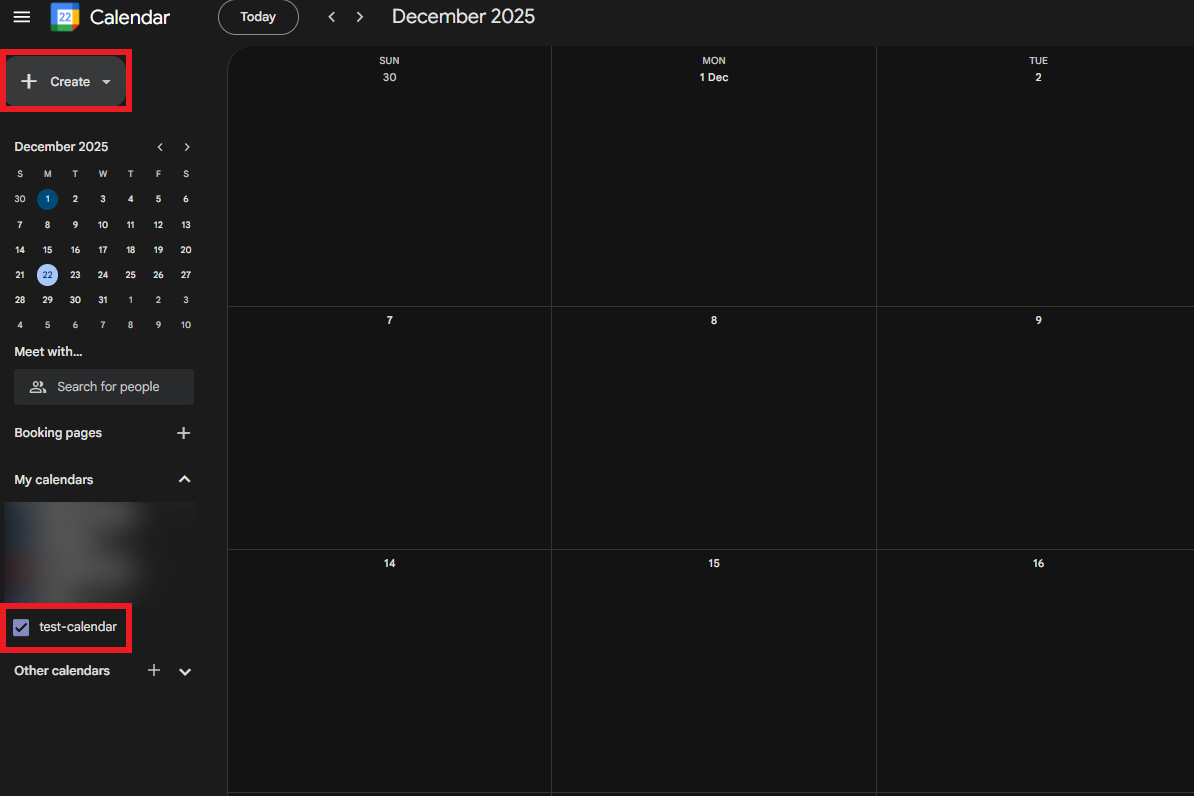
Open your browser and access the Google Calendar page. You are free to choose between using an existing Calendar or to create a new one.
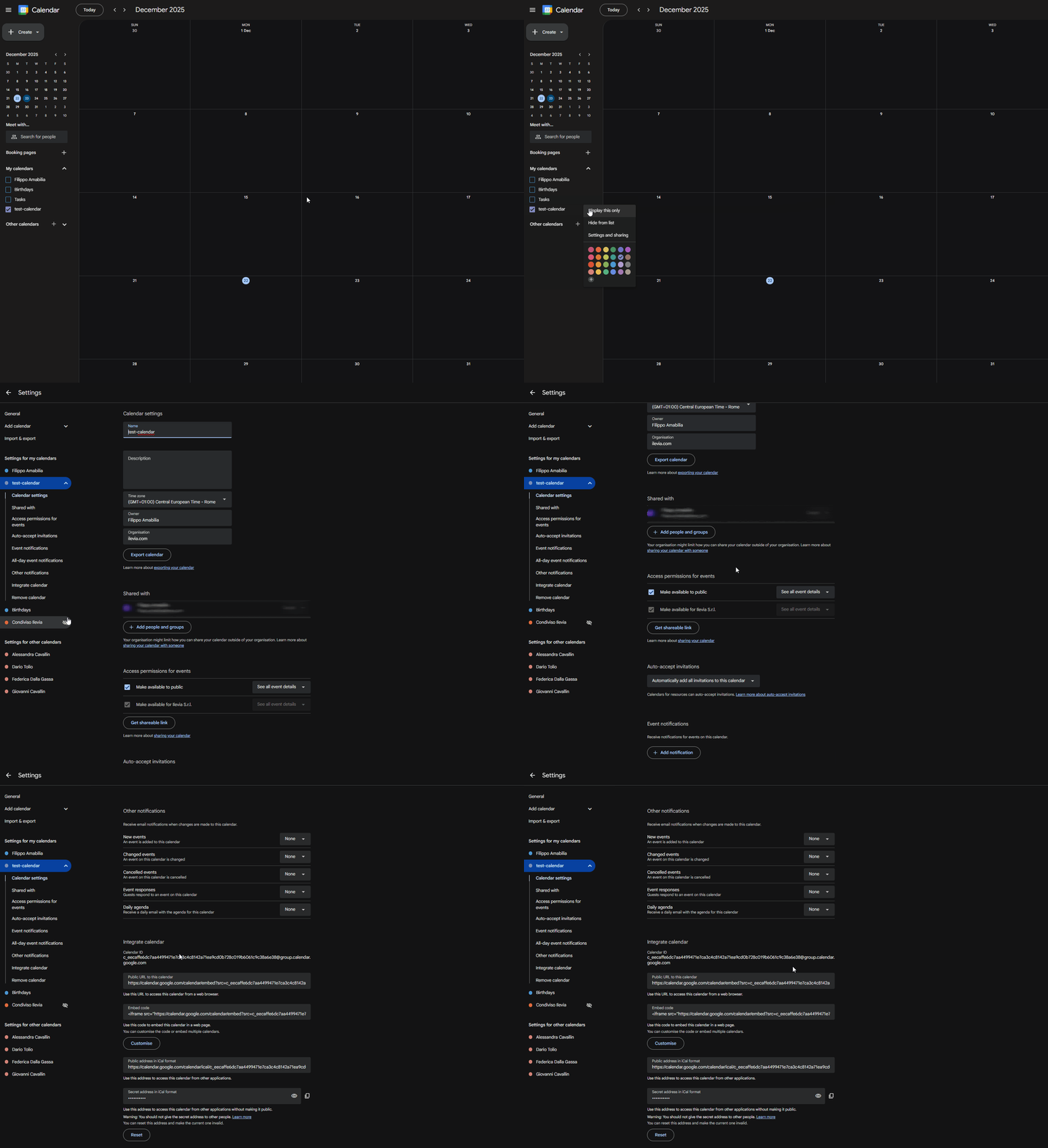
Access the “Sharing and settings” parameters of the selected calendar. Then scroll down the page until you find “Integrate Calendar“. Copy the Calendar ID. This setting is needed in order to link the ilevia server with the Google Calendar.
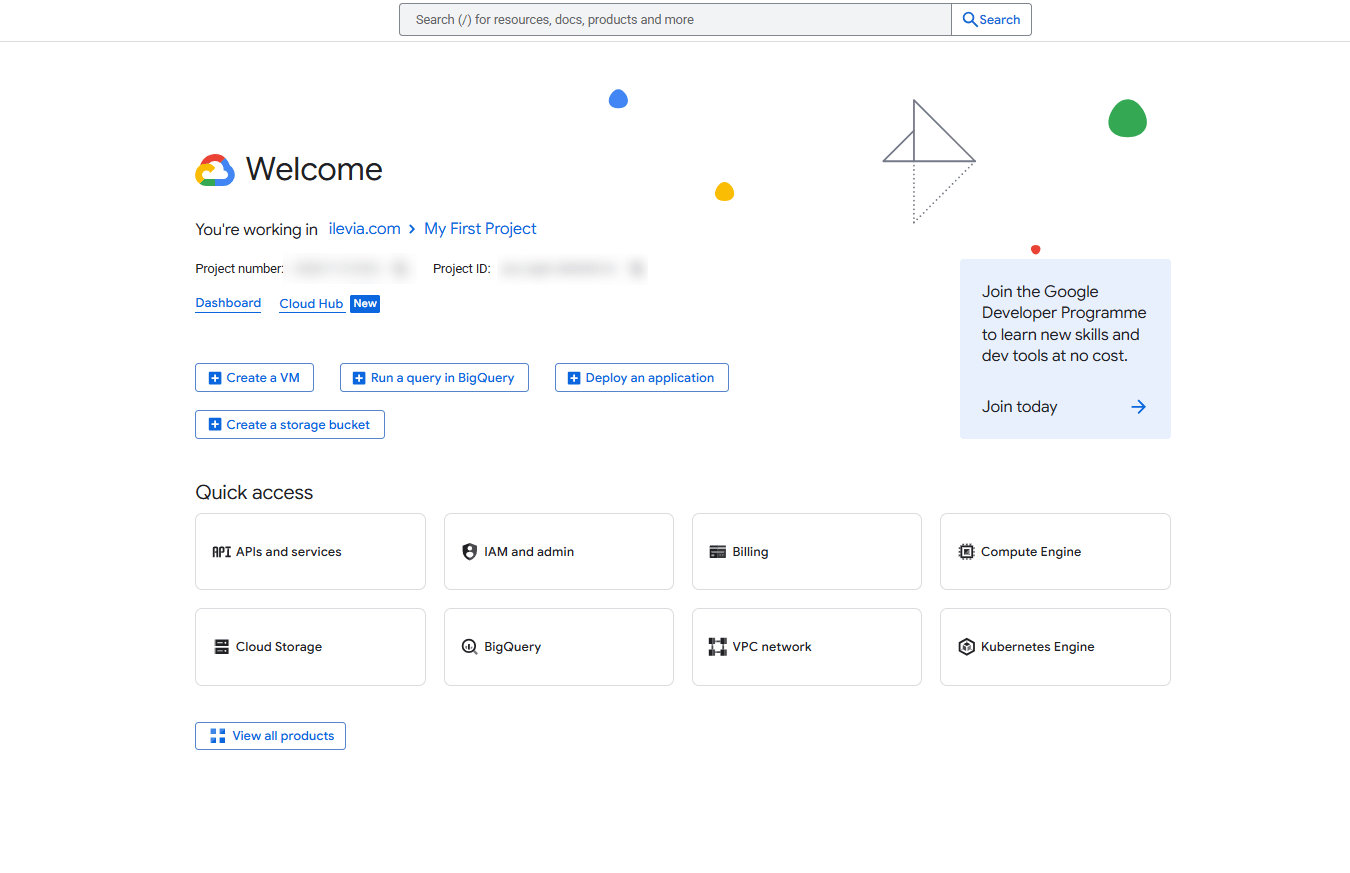
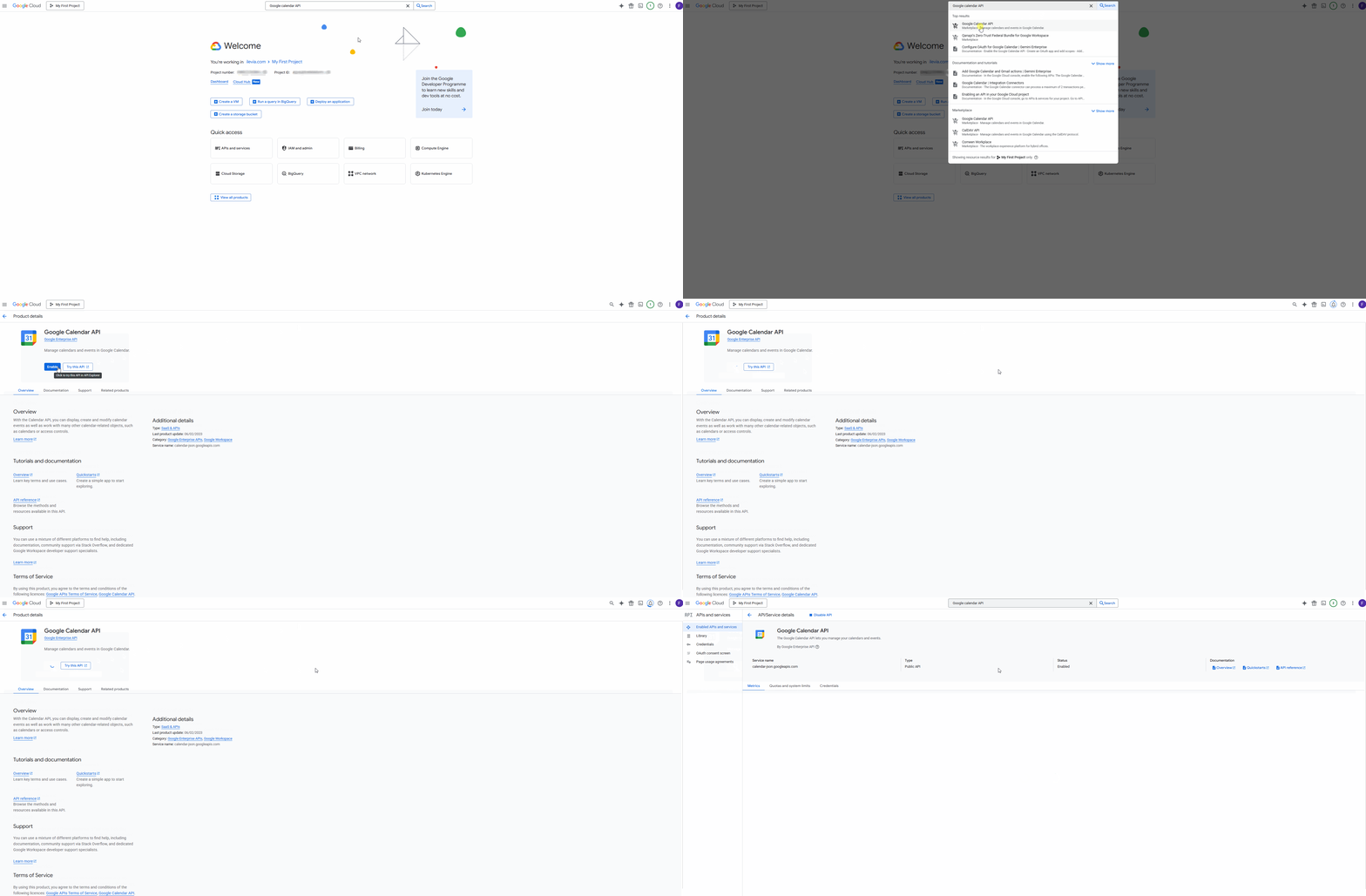
Connect to the Google Cloud console website in order to create the API Key that will link the Google Calendar.
Search for the Google Calendar API. Then click the first object on the list. Finally click Enable.
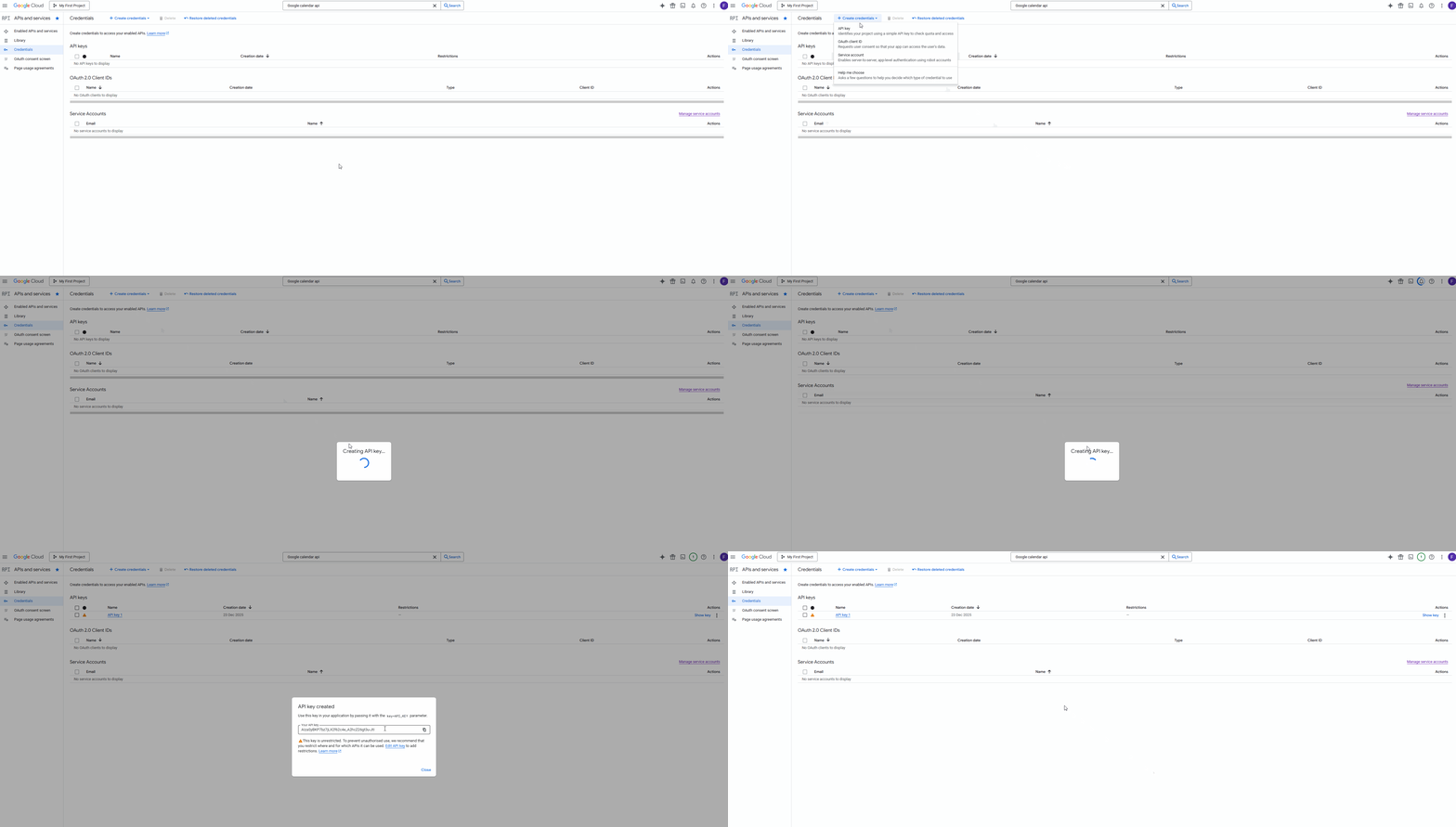
Click Credential then click Create Credentials and finally select API Key. Finally copy the API Key and click Close.
Project configuration
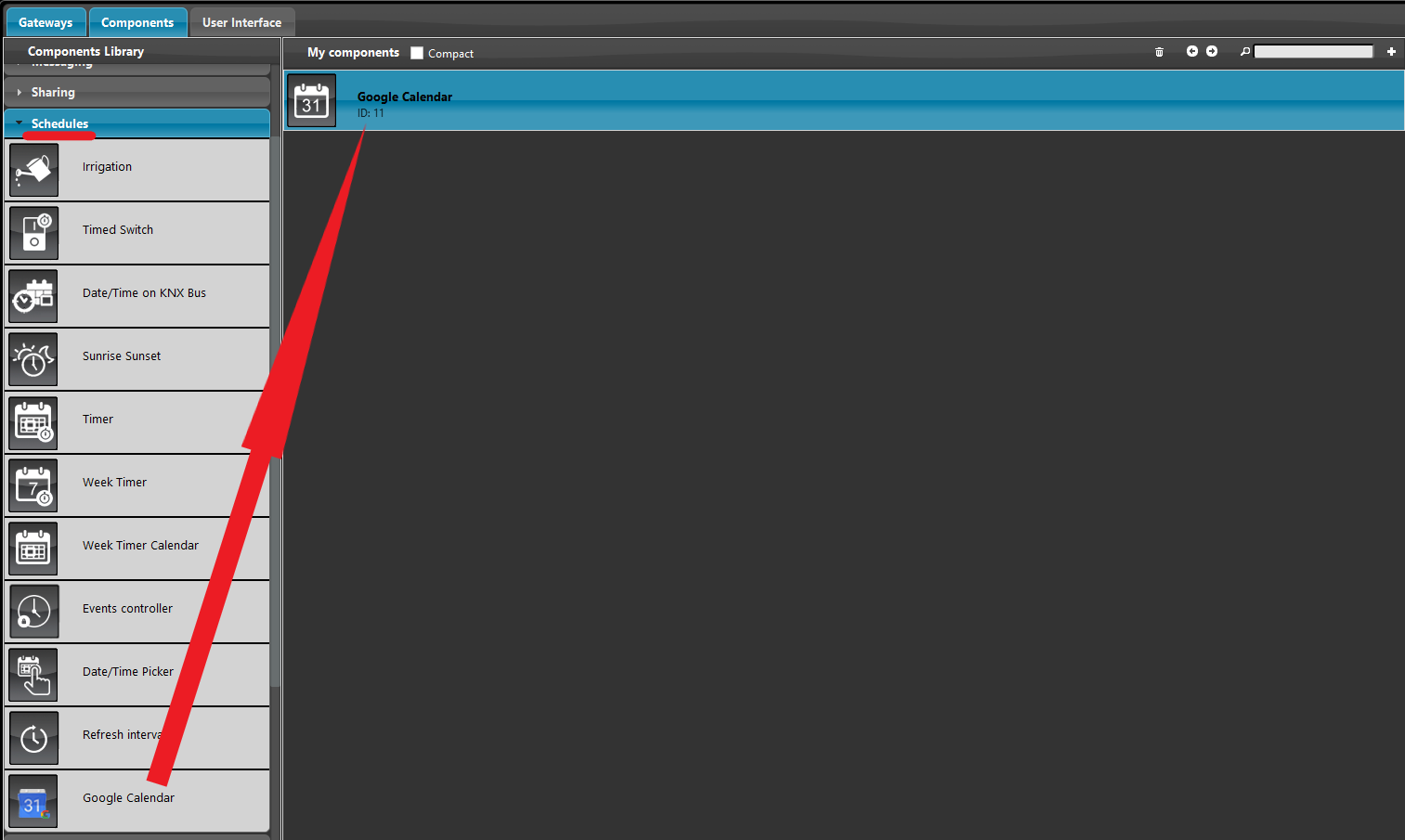
Open the Ilevia Manager software. Then open the Components Tab. Finally open the Schedule and add a new Google Calendar component.
Now paste the Calendar ID and the API Key on the respectful parameters.
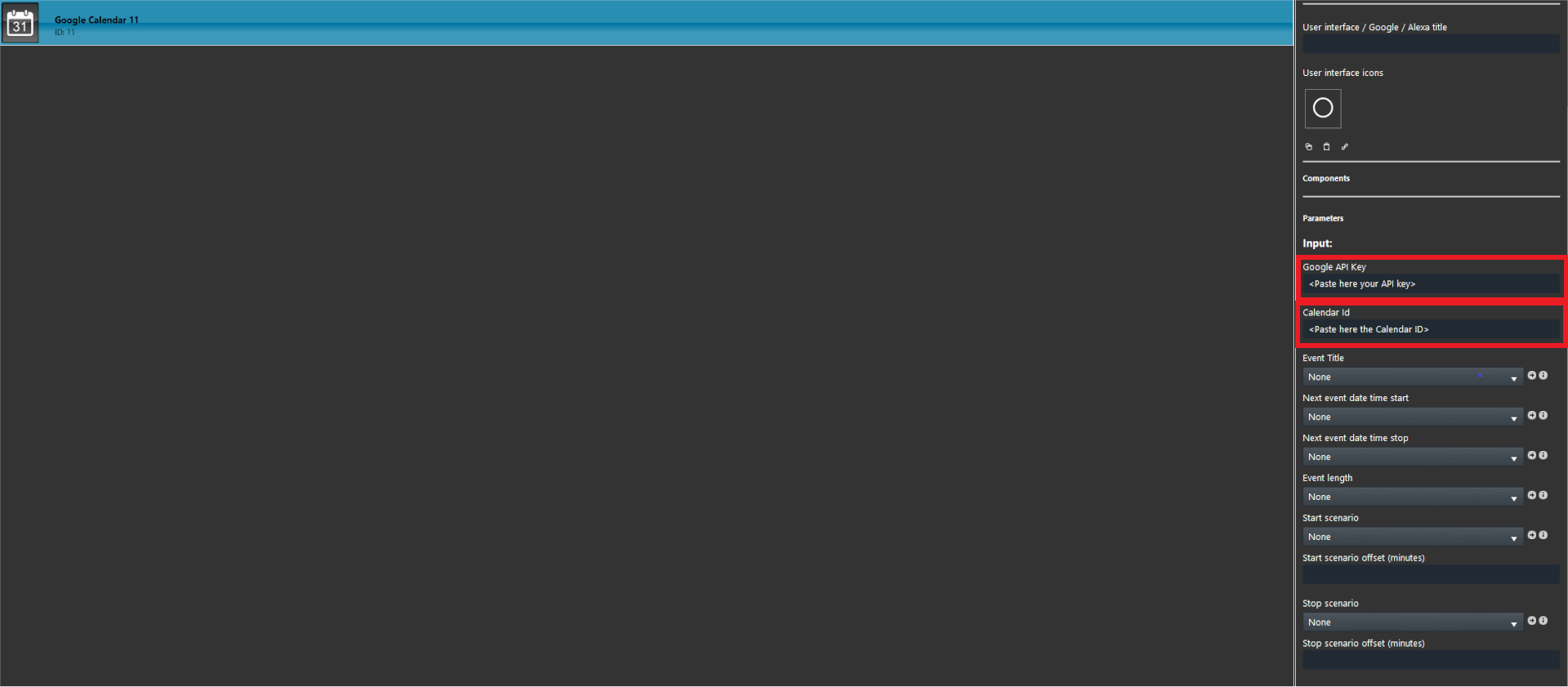
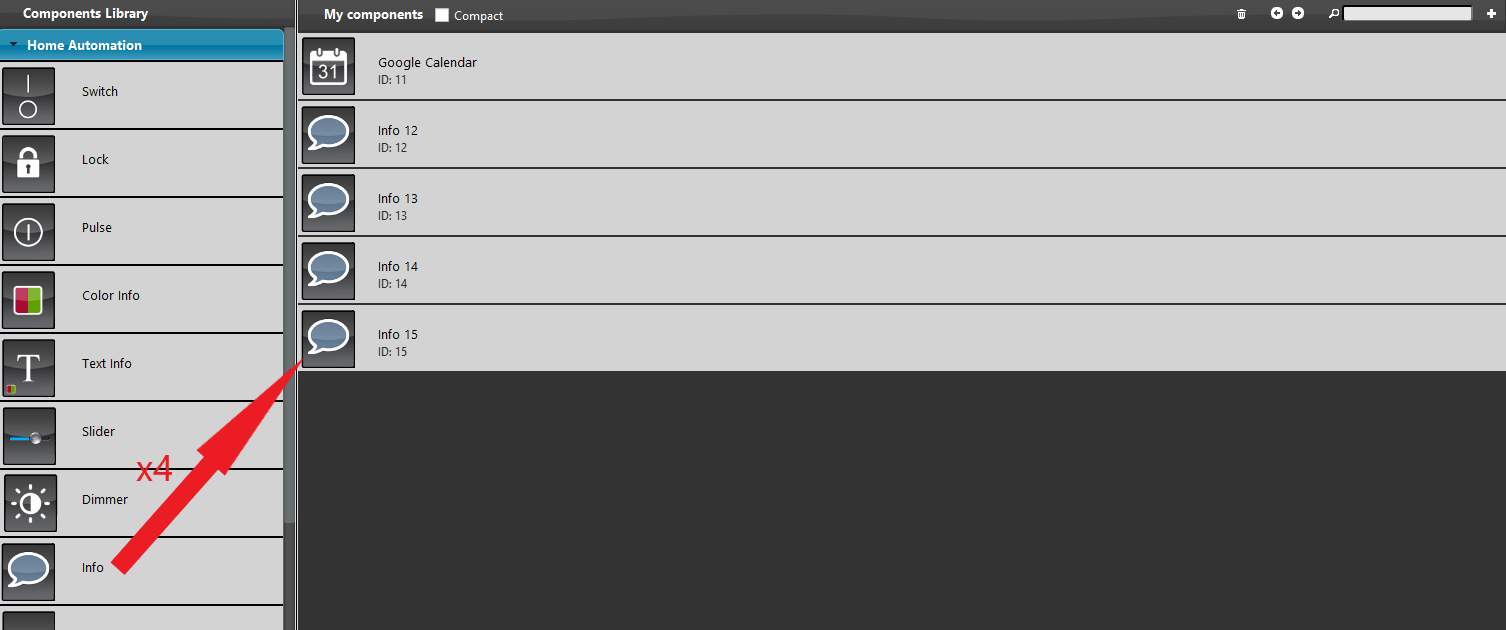
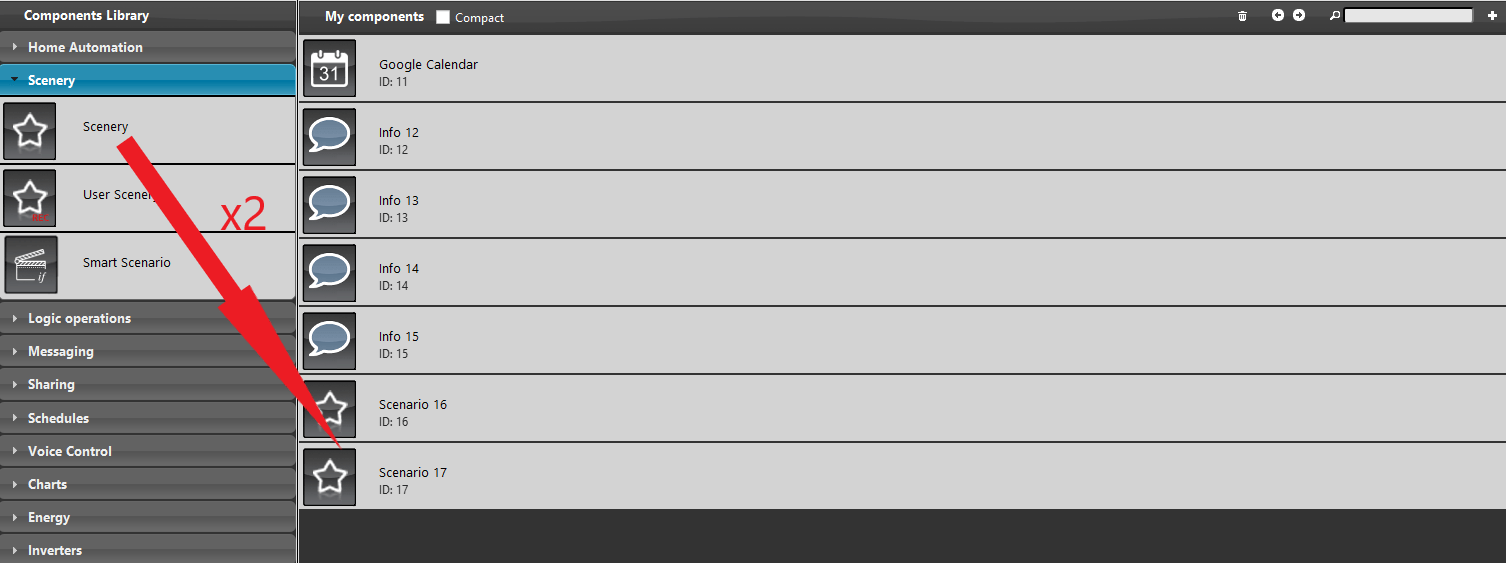
Add 2 Scenario components in the project. And link them within the parameters called Start scenario and Stop scenario.
Link the created components to the Google Calendar component.
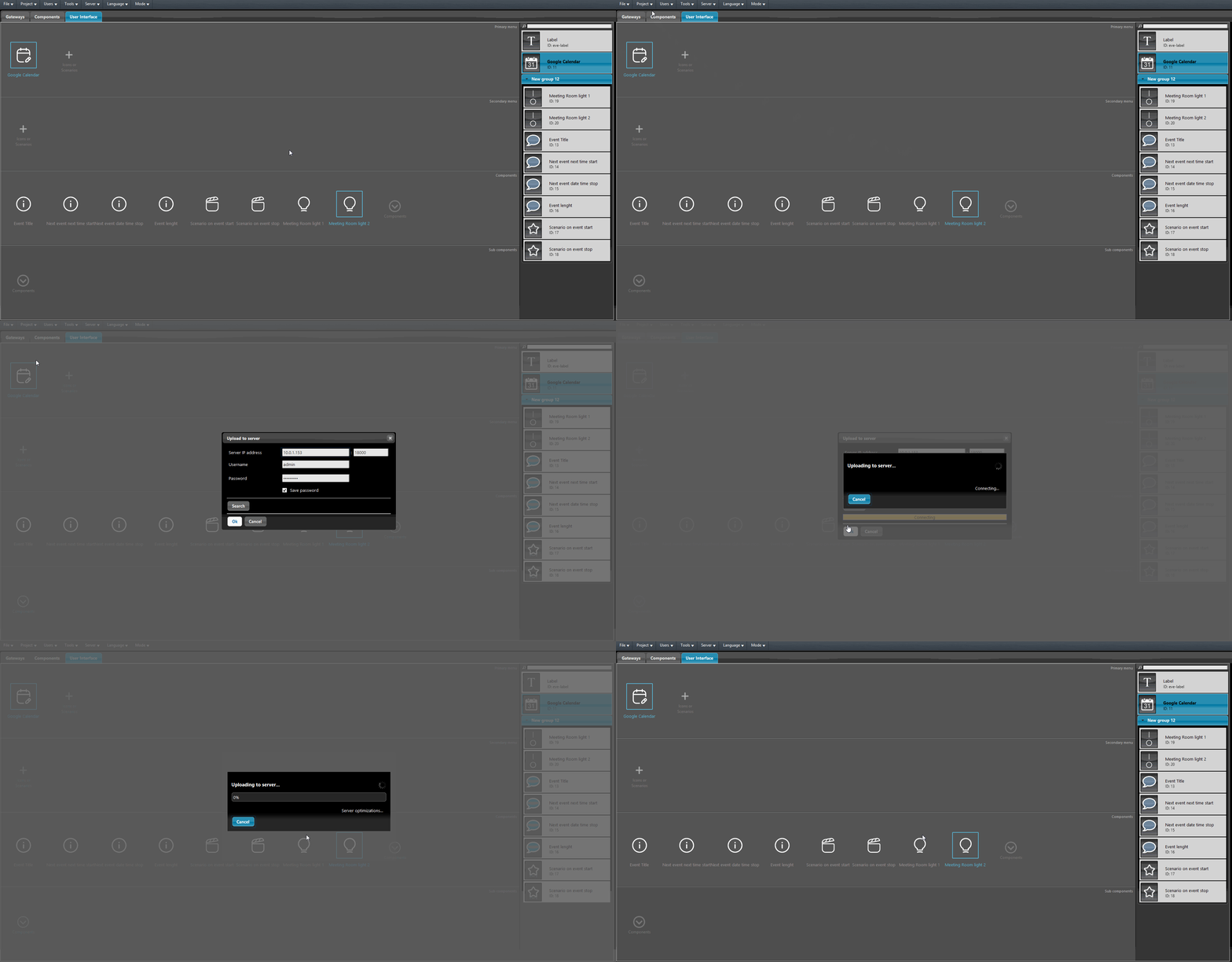
Finally enter the User interface tab and add the components in the User interface.
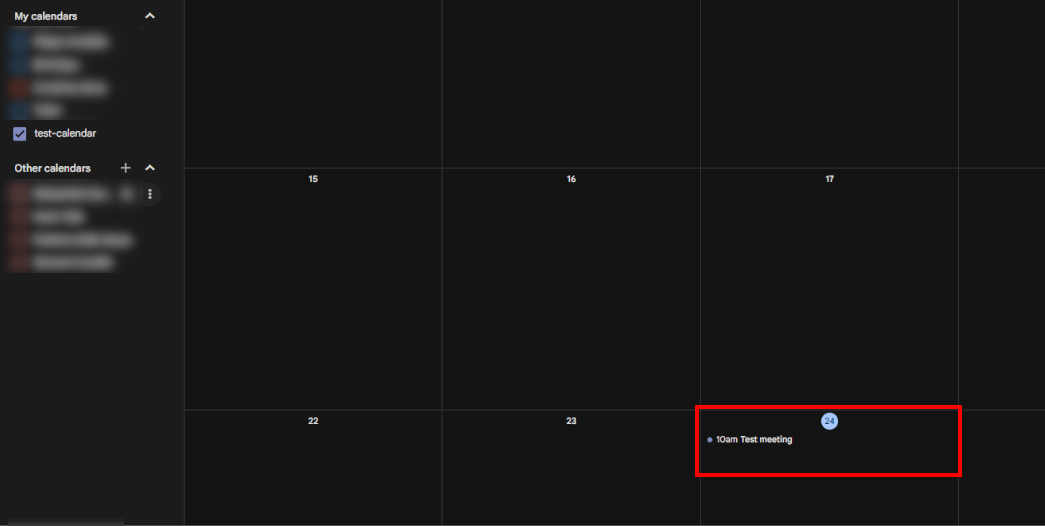
Create a new event within the Google Calendar web page with the calendar ID.
Here below displayed how the Google Calendar component works within the Ilevia Control app.
