


ETS PROJECT IMPORT
INTRODUCTION
The software Ilevia Manager allows you to import an ETS project in order to speed up the Ilevia project configuration.
Project import procedure
ETS project settings before import
Before proceeding with the ETS Project Import, in order to get the best from the Ilevia’s KNX importing wizard. The importing wizard within the Ilevia Manager uses the keywords to couple up the group addresses and create the component within the project.
You need to make sure that each group address that represents a specific device feature has its specific Keyword. That information is really important for the Ilevia’s wizard to understand and to set the group addresses couple that will create the component in the Ilevia Manager.
For instance if you set as Lighting devices keyword: “Light On/Off“, you must differentiate the one that represents other On/Off devices that uses the same data point within the ETS project.
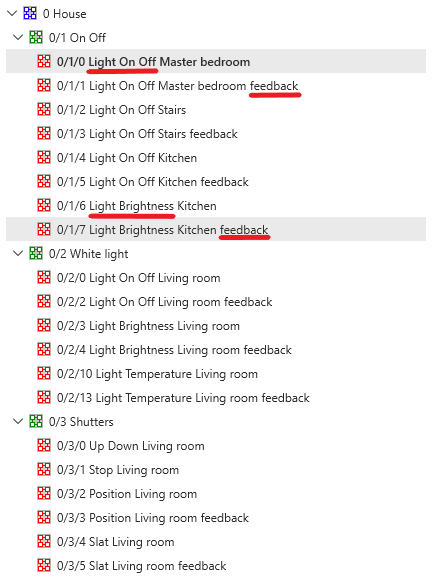
Click the link below to download the ETS a demo project and try it yourself.
ETS project import
Step 1:
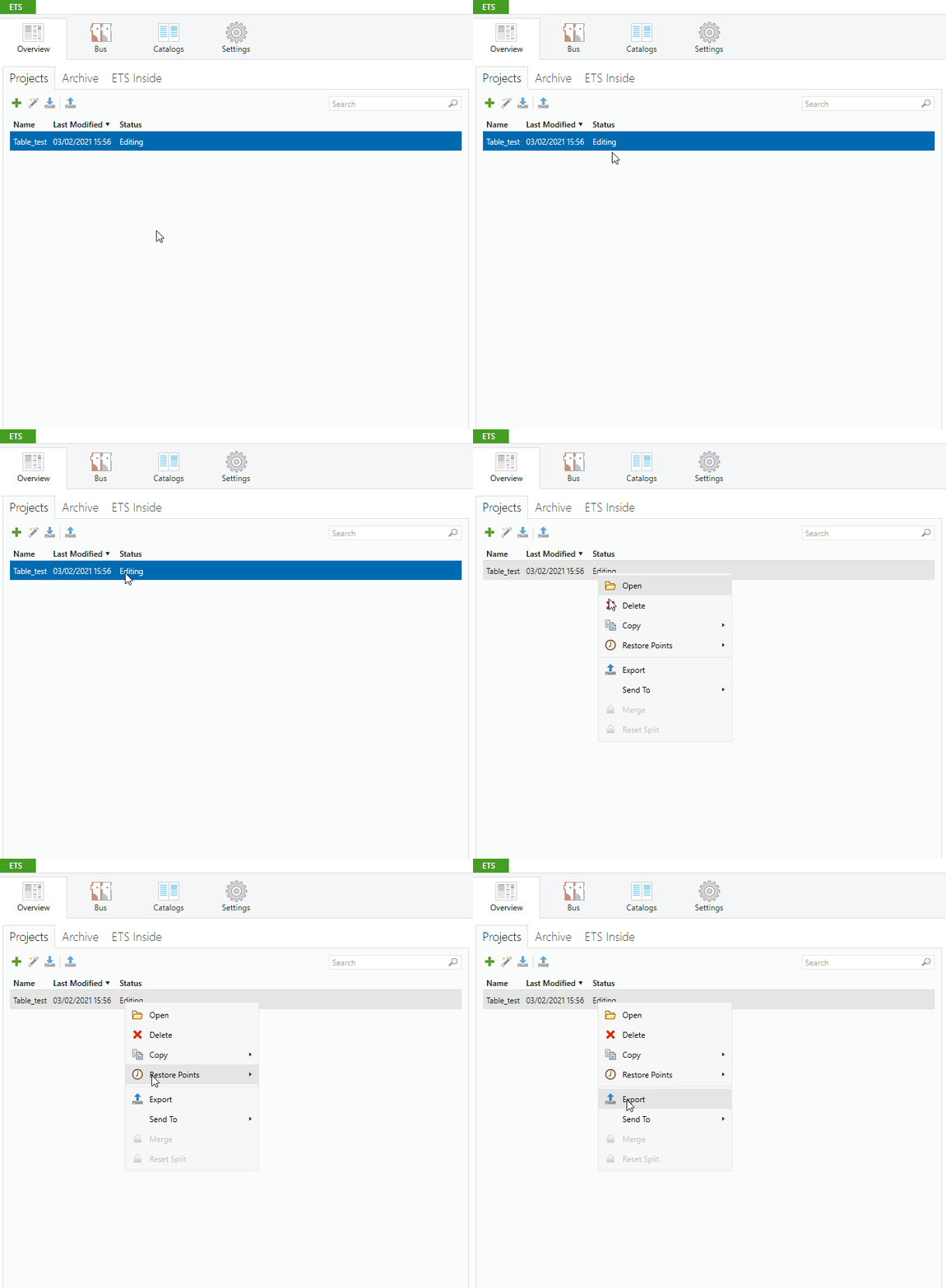
Open your ETS software and click on the project you want to export and right click on it.
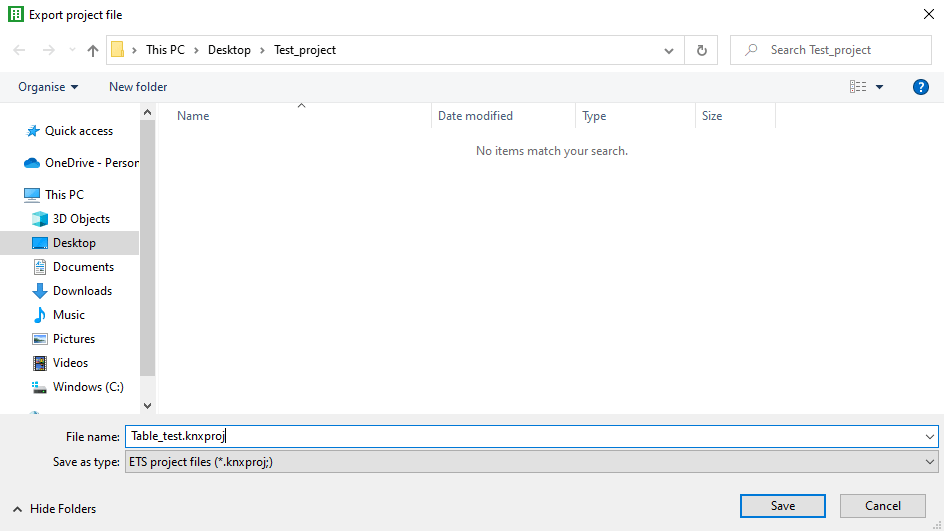
Once clicked on the export button a new window will appear, make sure that the file name .knxproj is selected from the “Save as” drop down, then hit save.
Step 2:
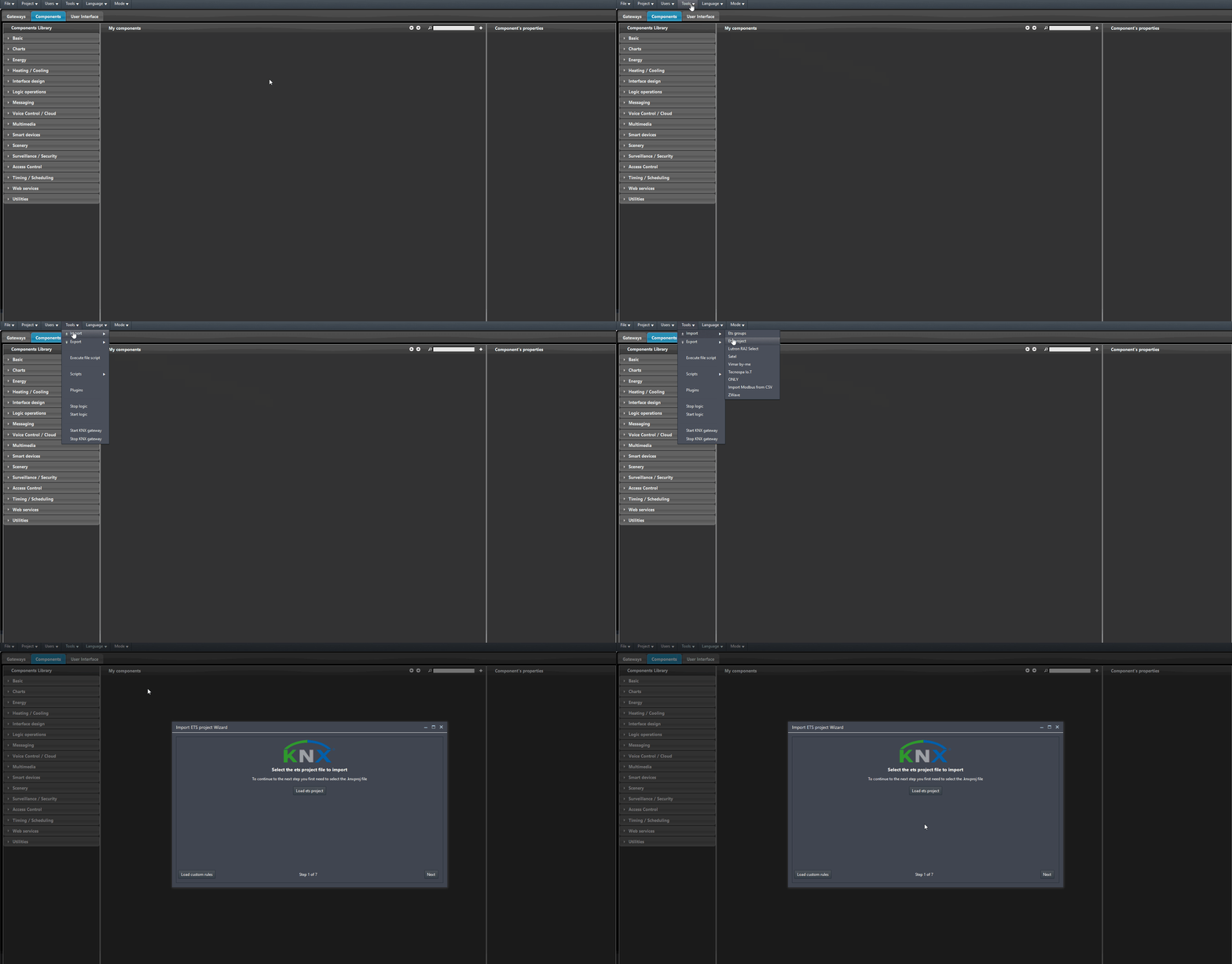
Now open the EVE configuration software Ilevia Manager and head to the “tools” menu on top of of the screen, then click on the “Import” side menu and finally click on “ETS project“.
Step 3:
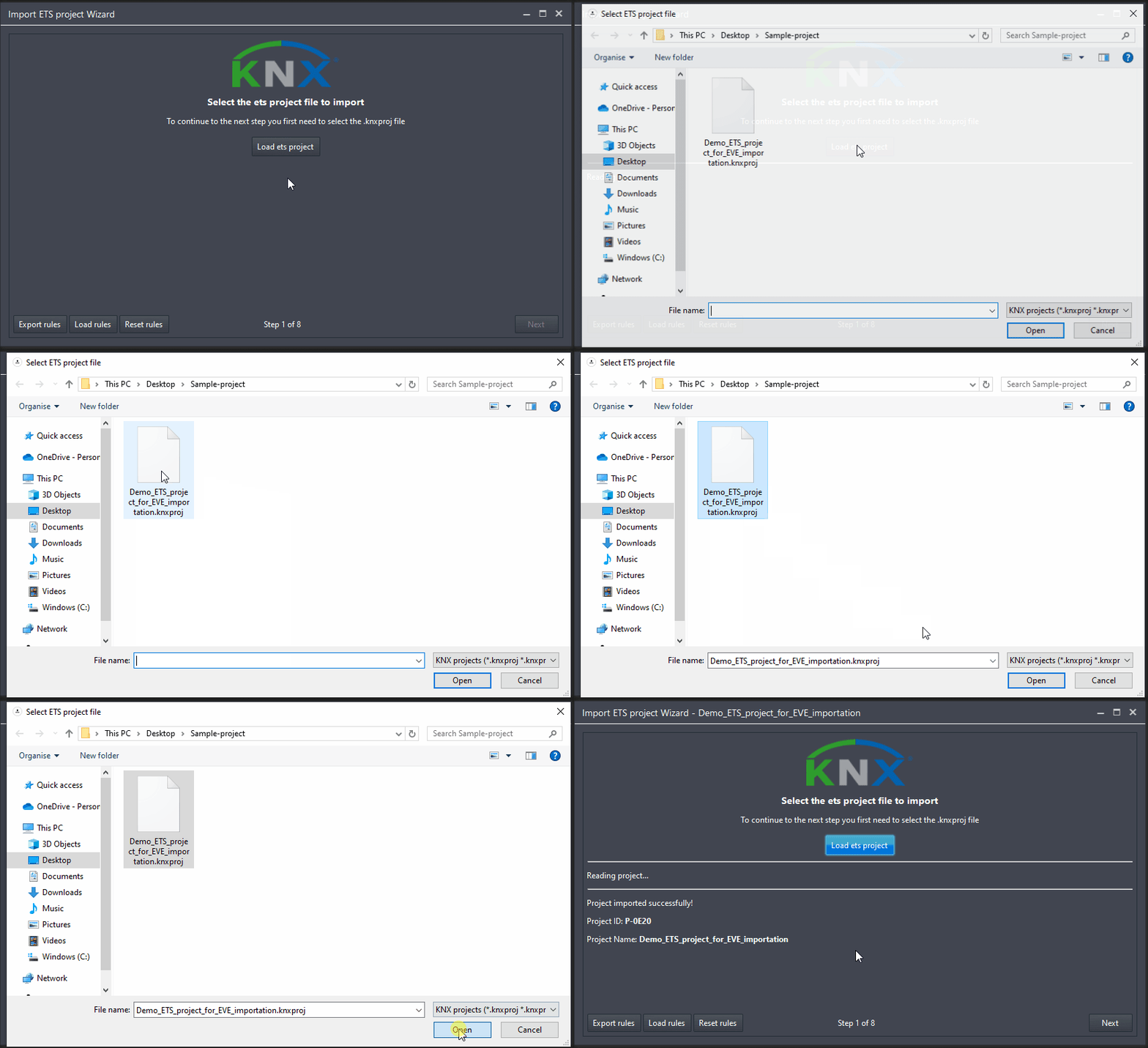
Once you clicked on “ETS project” a new window will appear in the middle of the screen, in order to open the ETS project inside Ilevia Manager click on the “import” button on the top left corner of the import window.
ETS project password
Before importing the ETS project into the Ilevia manager, make sure it to it has no password set to it. In order to remove the password from the ETS Project follow the next steps:
1: Hover the project on the ETS Main page and click Details;
2: Then select details;
3: Finally click Change password then Cancel password.
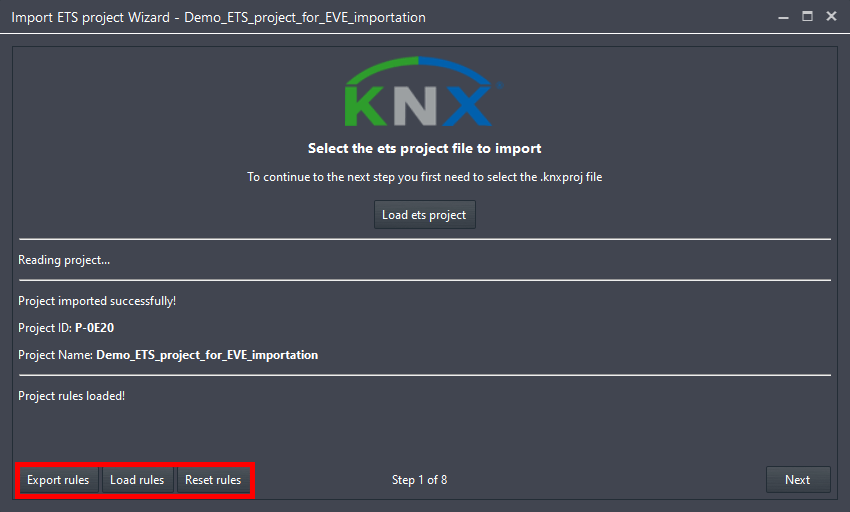
On the bottom left of the wizard’s window you can see three buttons. These buttons manage the rules created during the import of the ETS project. Such as the coupling keywords (Command / Status, Up / Down – Stop) and the other settings done within the “Advanced mode” of the wizard.

Export rules: This button will allows you to export the rules created within the step in the ETS project wizard of Ilevia Manager.

Load rules: This button allows you to load a Rule file exported from other Ilevia Manager software.

Reset rules: This button will Reset the rules created in the Wizard during the ETS project import.
Step 5:
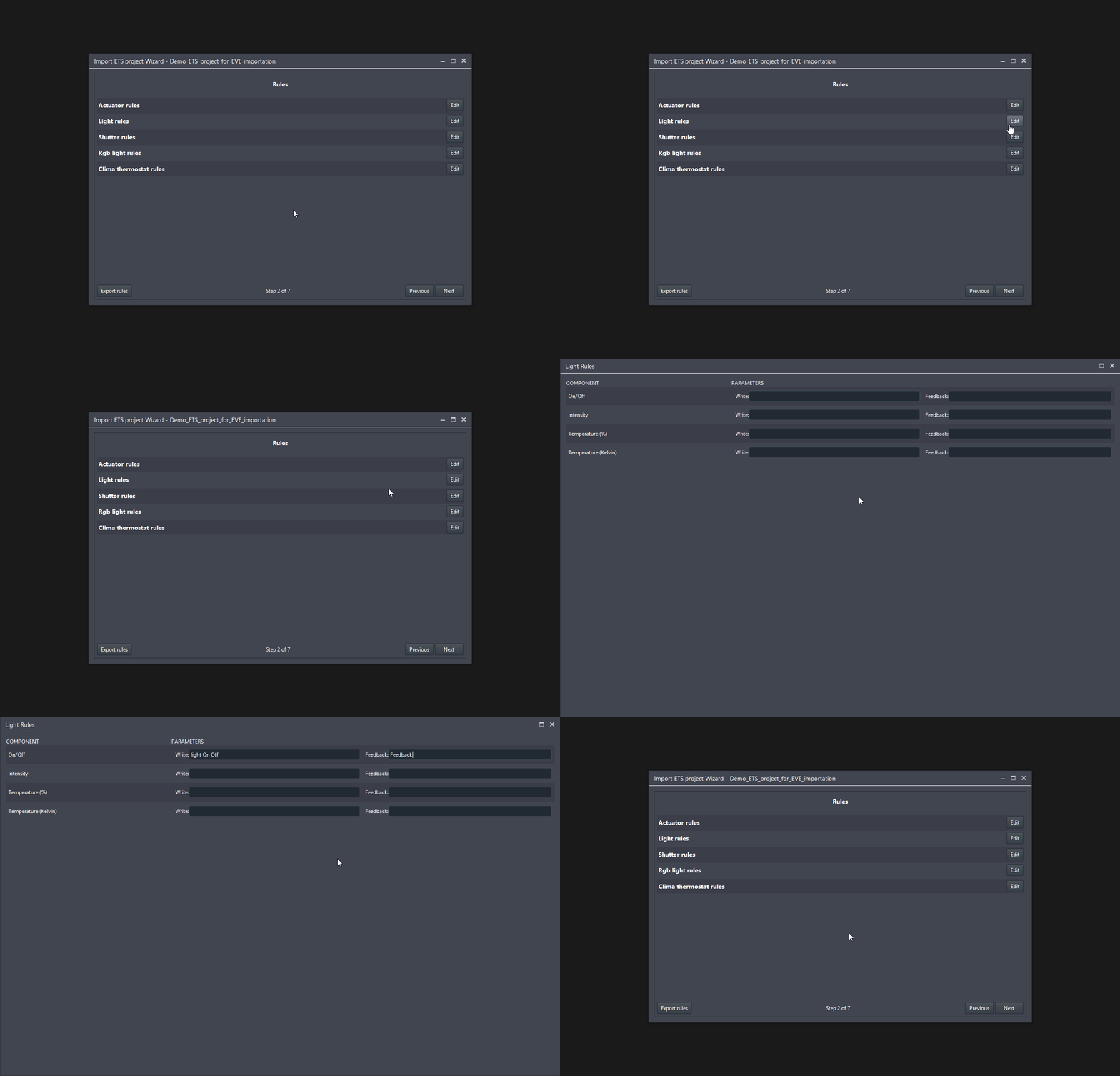
After loading the project click next on the bottom right corner, here you will be able to set the keywords that the ETS wizard will use to pair the group addresses in order to create a single component in the Ilevia project with both group addresses already coupled together. If this step is not set once the Ilevia project is created there will be two separate components, one with the write address and the other with the feedback. We suggest choosing keyword such as: Light On/Off for the command address and Feedback for the feedback one. These keywords will be checked for each name of the group addresses.
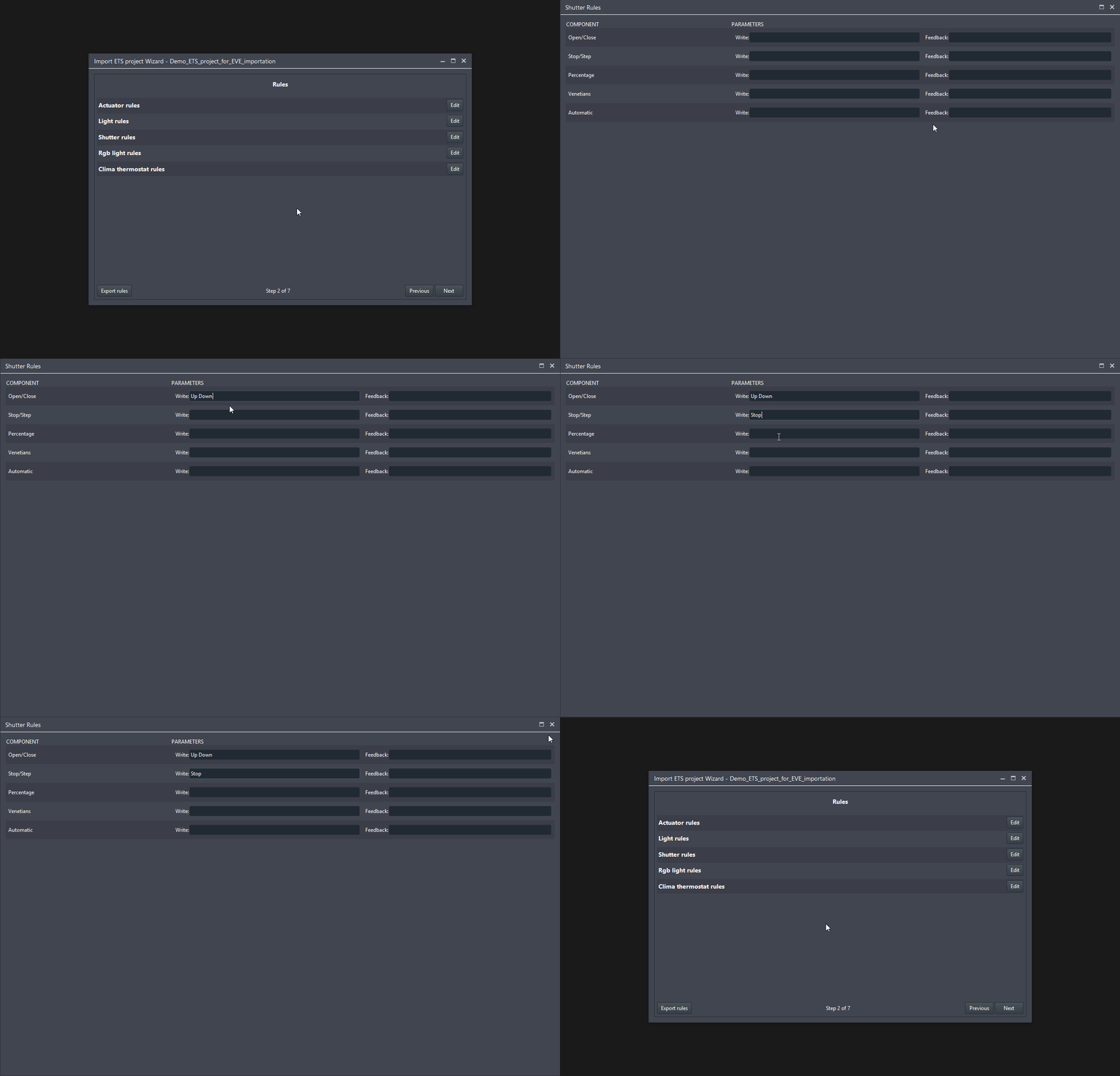
Step 6:This step has the same functionality of the previous one with the difference that, in this step, you will be setting the coupling keyword specifically for the Shutters. So be careful to set the keywords in order to match the ones you set in the ETS project.
Step 7:After setting up the keywords you can choose to 1. The ETS project overview allows to have a complete overview of the ETS project. Here you can also select and filter the group addresses that will be imported in the Ilevia’s configuration software. 2. Create project will start the component creation procedure. 3. Remove unused components works only after the first import, and allows to remove the components that didn’t have any customisation. Lock components name makes you unable to change the name of any component created from the ETS project imported. 4. “Advanced mode“, the advanced mode allows you to set more rules and filters for the import.
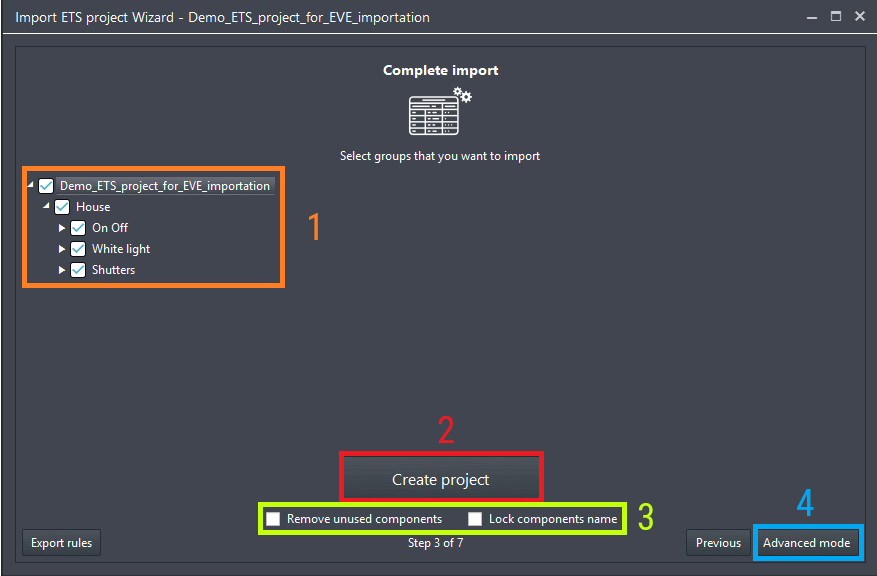
Wizard advanced mode
Step 8:
Once clicked “Advanced mode” a new step will be opened, in this step you will be able to add a ETS group names that the wizard won’t import inside the EVE project. You can even decide to ignore importing the empty groups by leaving the check box “Ignore empty groups” selected.
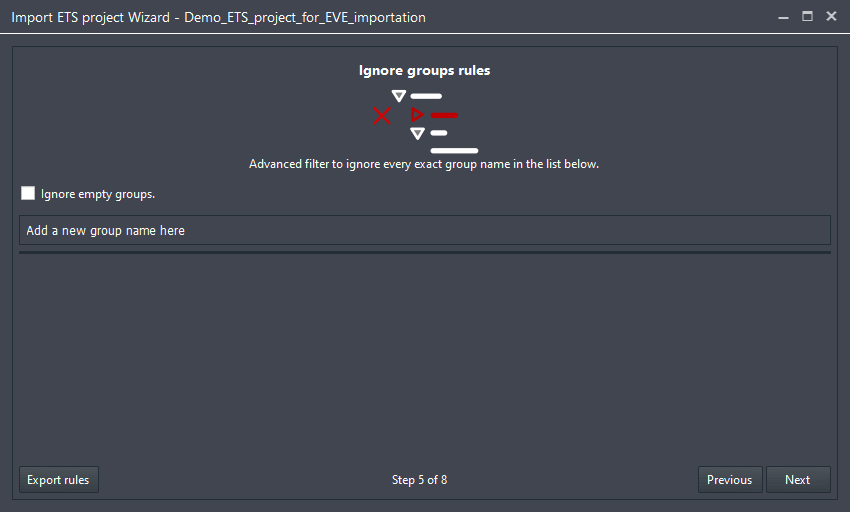
This step allows you to make custom rules to prevent the import of the specified group address that contain the characters added in the list below. In the example below the components that contains the characters “—” won’t be imported inside the Ilevia Manager project.
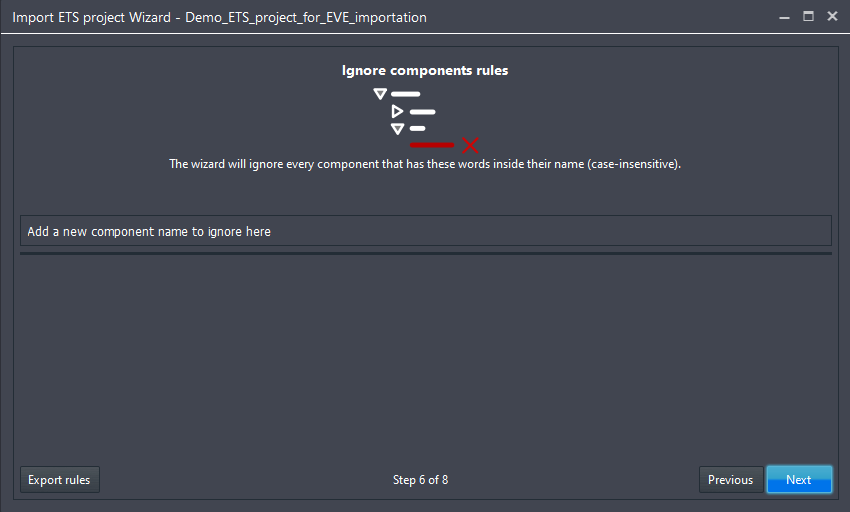
Step 10:
This is the final step of the ETS import wizard, first disable the check box called “display undefined only“, because if you don’t it will display only the group addesses which the wizard has not been able to recognise the “Dpt” (Data type). On the left side of the screen you will be able to see all the groups created inside the ETS software. On the right instead it is displayed all the group addresses already associated with each other with the component that has been applied based on the Dpt you gave them in the ETS configuration.
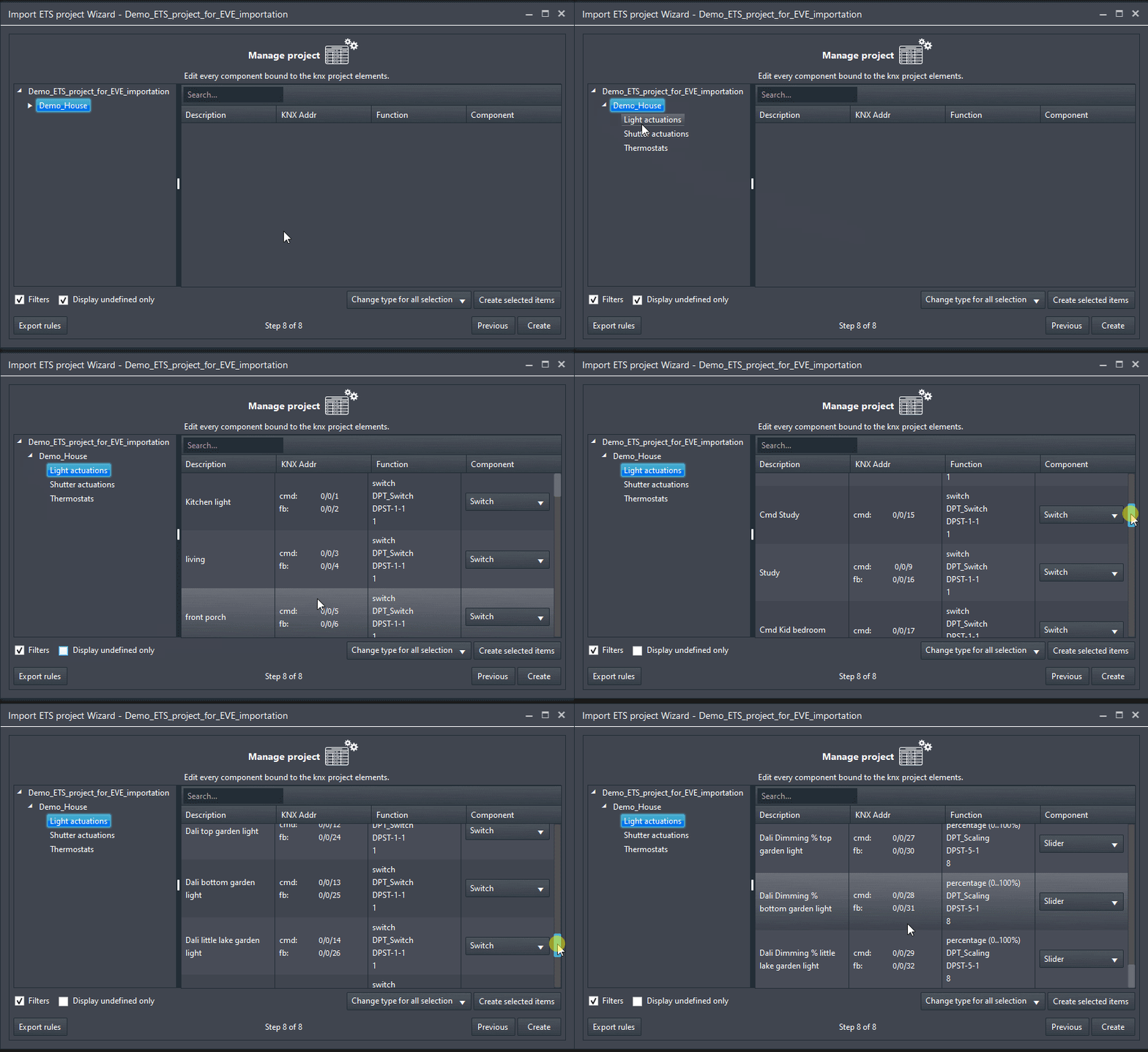
Manage project functions
The seventh step allows to get the full project preview before importing it inside your Ilevia project. Below the components screen some more options are shown, here’s below each one of them explained.

Filters

If enable this check box will apply the filters you created in the steps before.
Diplay undefined only

If enalbed this checkbox will display only the object the wizard wasn’t able to recognise, this mean that none dpt has been specified to the group address.
Create selected Items
This drop down allow the user to select multiple components inside the wizard and then changing its type to the one selected inside this menu.
Export rules
This button, if pressed, will open the local files allowing you to save the rules set in the previous steps.
Save custom rules
This button allows the User to save the custom rules made in the steps before called rules.json file save in the following patch of your computer.
File path: Users\Admin\AppData\Local\EVEManager/knx_wizard
Previous & Create
Previous: Allows the user to get back of one step in the wizard importing procedure
Create: Will import the KNX project and so create the components inside the EVE project applying the rules you set up in the wizard procedure.
|
Filters
|
If this check box is enabled, you will apply the filters you created in the steps before. |
|
Diplay undefined only
|
If you enable this checkbox, it will display only the object the wizard wasn’t able to recognise, this means that no dpt has been specified to the group address. |
|
Component selector
|
This drop down allows the user to select multiple components inside the wizard and then change its type to the one selected inside this menu. |
|
Create selected Items
|
This button allows you to create only the selected components inside the components list on the right side of the wizard window. |
|
Export rules
|
This button, if pressed, will open the local files allowing you to save the rules set in the previous steps. |
|
Save custom rules
|
This button allows the User to save the custom rules made in the steps before called rules.json file saved in the following patch of your computer. File path: Users\Admin\AppData\Local\EVEManager/knx_wizard |
|
Previous & Create
|
Previous: Allows the user to get back of one step in the wizard importing procedure Create: Will import the KNX project and so create the components inside the EVE project applying the rules you set up in the wizard procedure. |
